Alipay Registration & Card Binding: Full Step-by-Step Guide
Every screenshot below is from a real test we ran ourselves — registering a new Alipay account with a US mobile number and linking a Visa card. No Chinese phone number was needed at any step.
Before you start
- A mobile phone that can receive SMS (any country)
- A Visa, Mastercard, or other supported bank card
- Alipay app installed (version 12.12.30 or later)
- About 10 minutes
Part 1: Register your Alipay account
Step 1: Enter your phone number
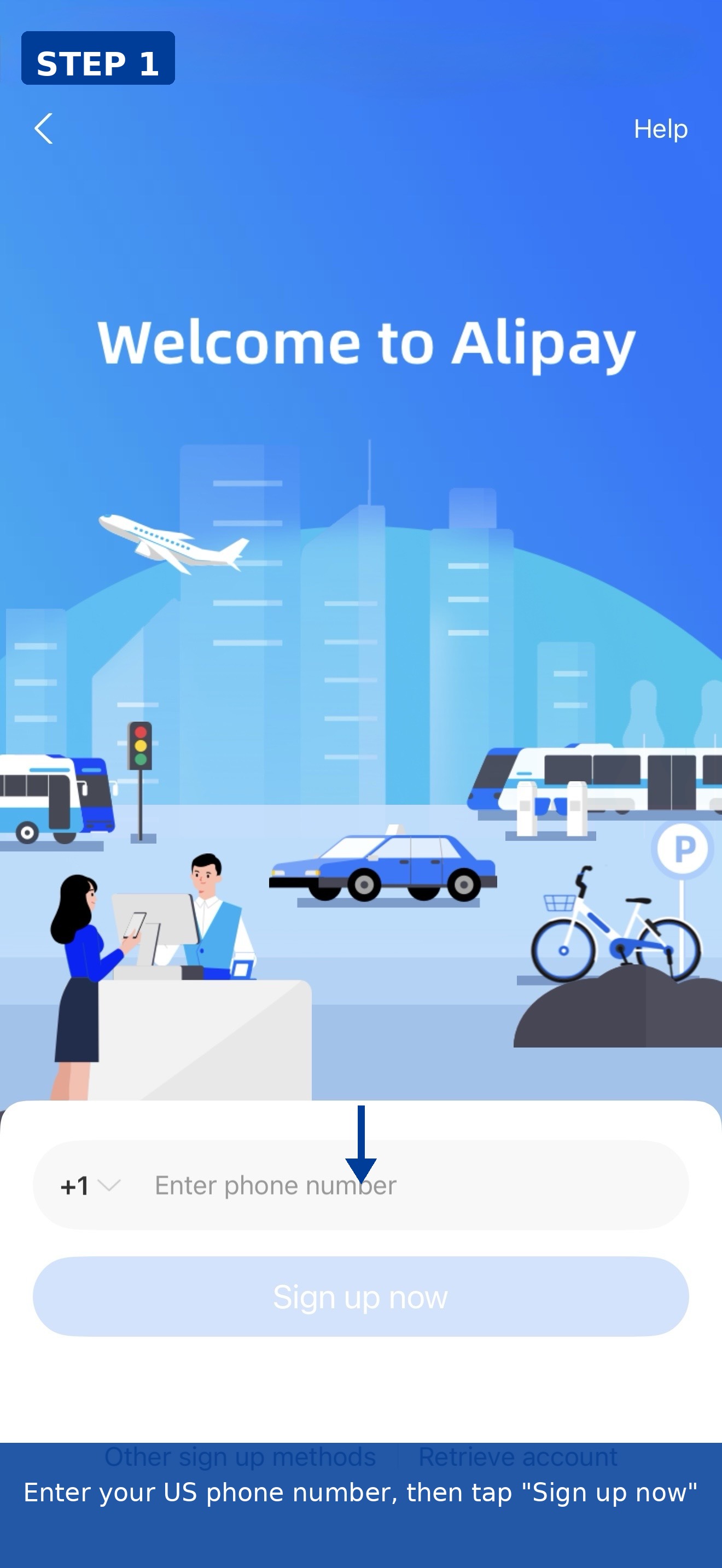
Open Alipay, select your region (we used +1 for the US), enter your mobile number, and tap "Sign up now".
Step 2: Agree to the service agreement
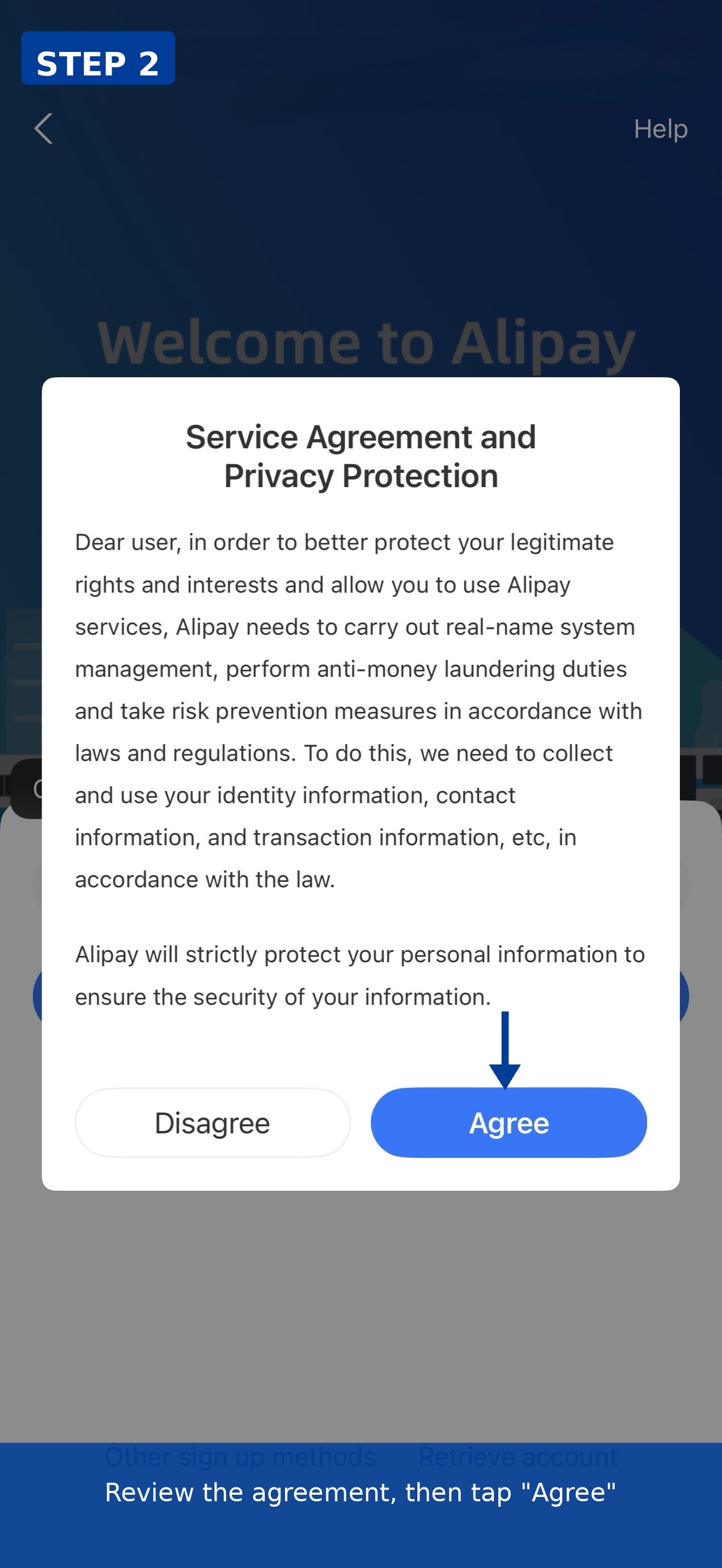
Review the Service Agreement and Privacy Policy, then tap "Agree" to continue.
Step 3: Enter the SMS verification code
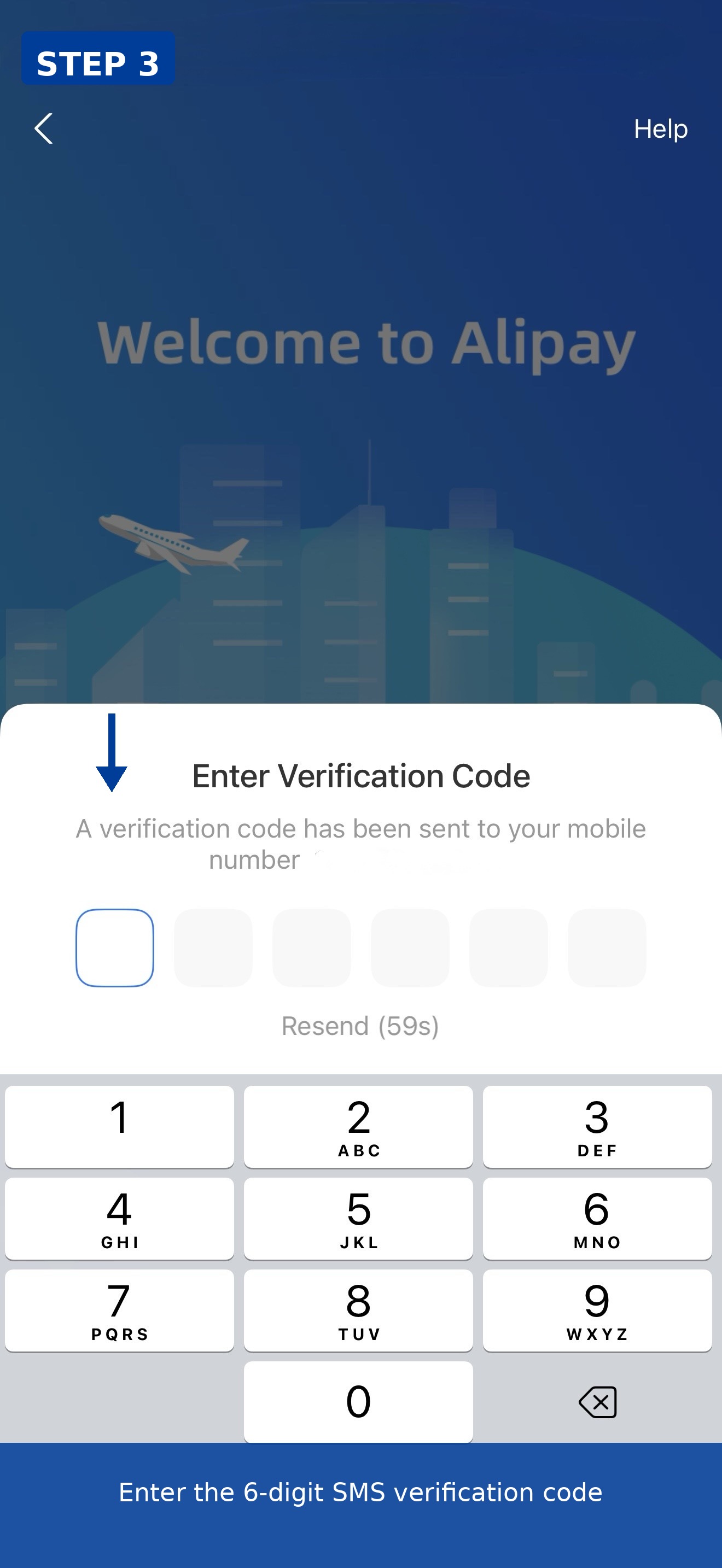
You'll receive a 6-digit code by SMS. Enter it to verify your number.
Step 4: Select your ID country/region
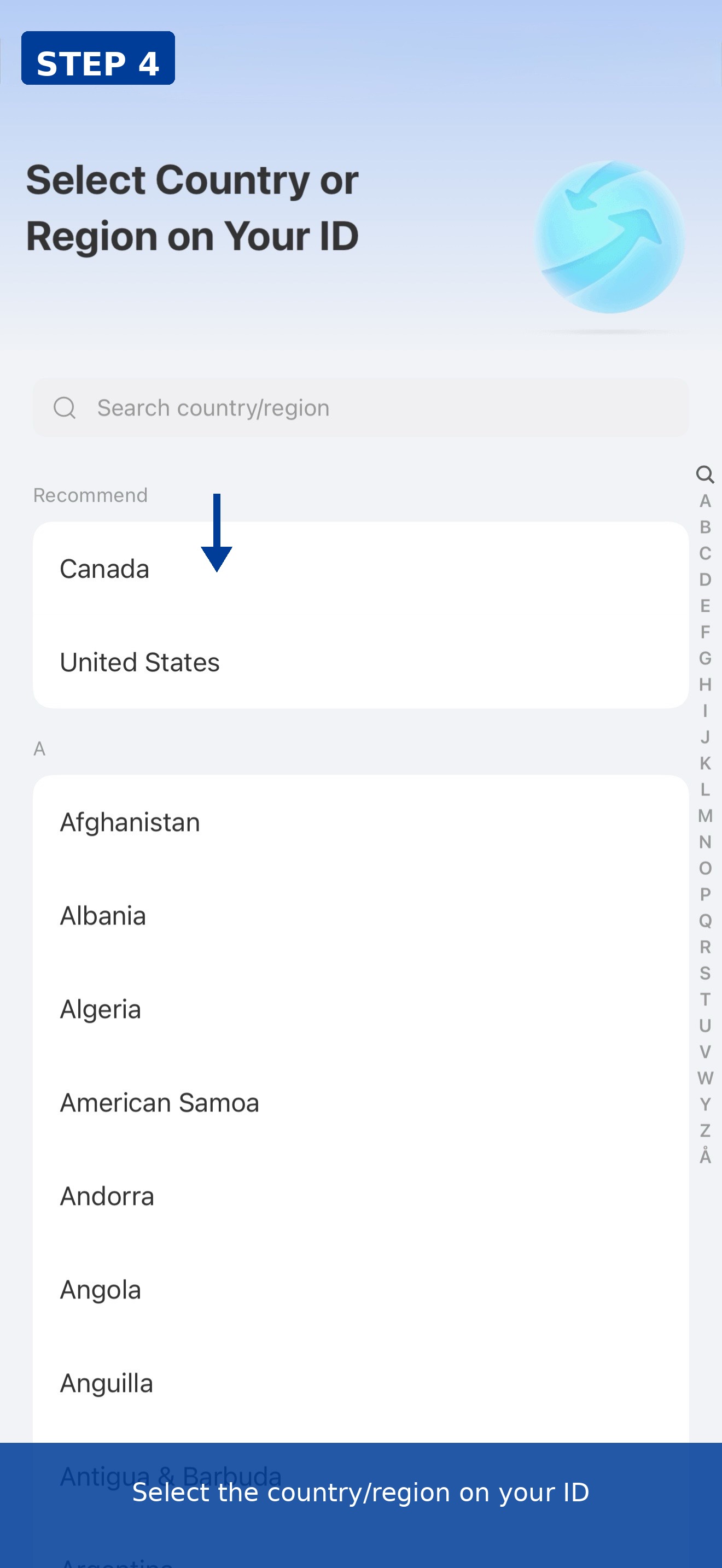
Choose the country or region shown on your ID document (we selected United States).
Part 2: Add your bank card
Step 5: Go to add a card
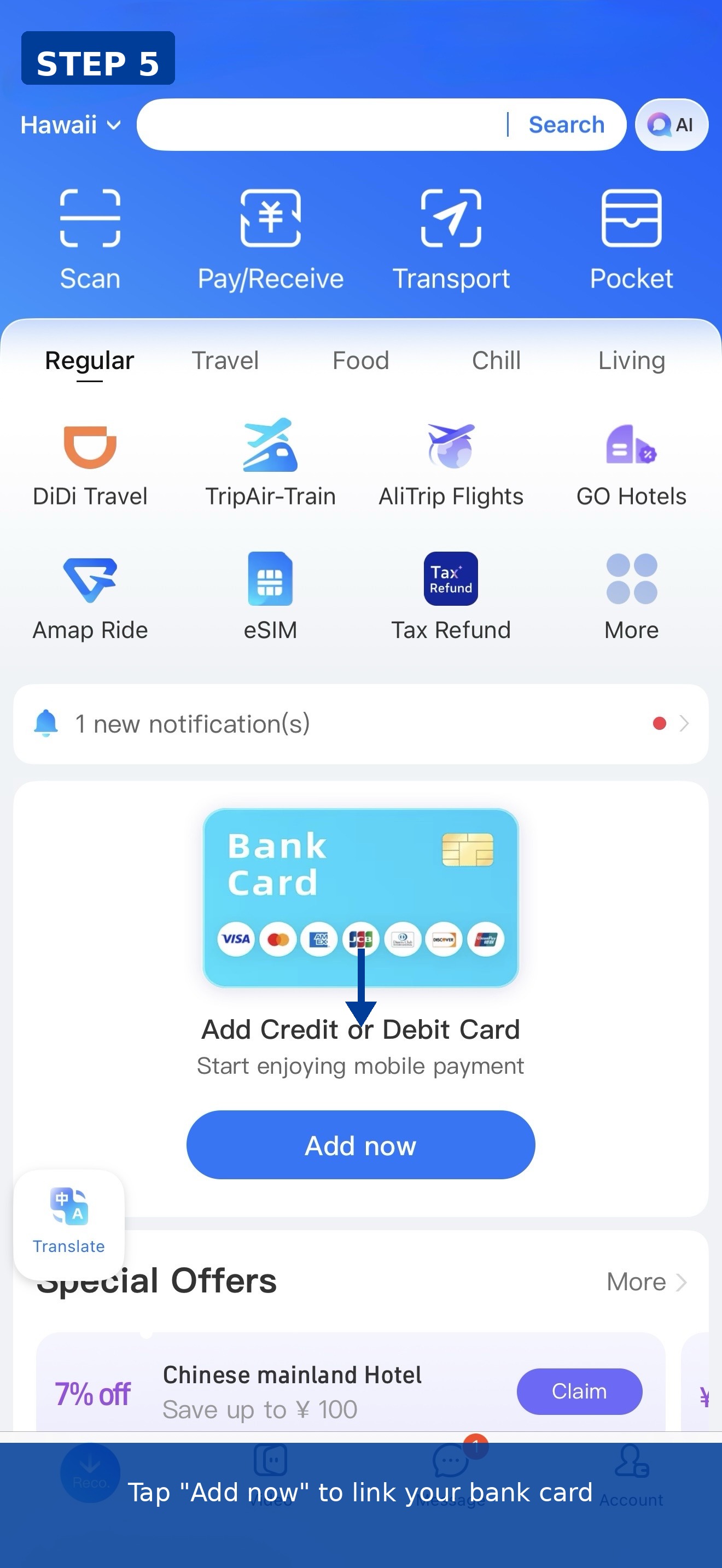
From the Alipay home screen, find the "Add Credit or Debit Card" prompt and tap "Add now".
Step 6: Start the card linking flow
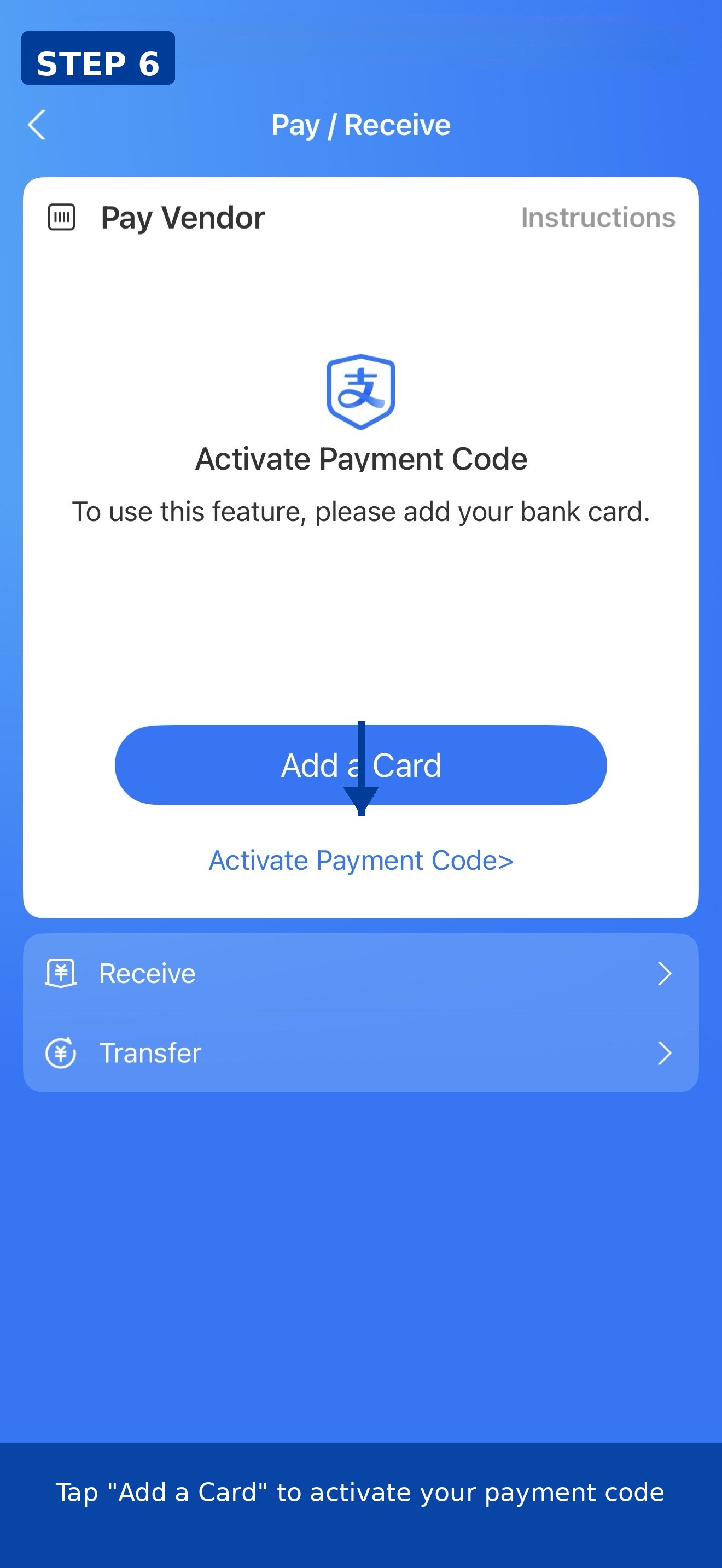
On the Pay/Receive screen, tap "Add a Card" to begin.
Step 7: Enter your card number
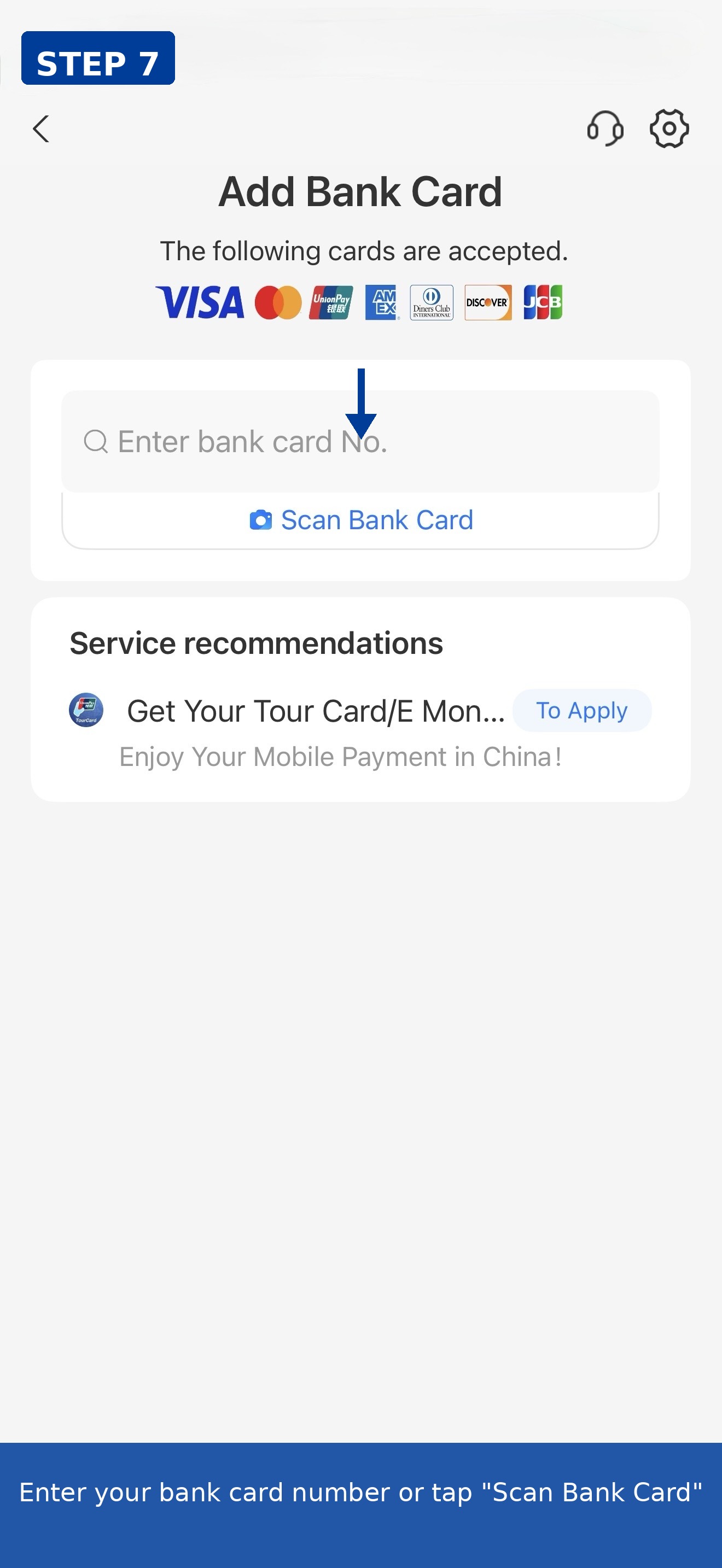
Type your card number manually or tap "Scan Bank Card" to scan it with your camera. Alipay accepts Visa, Mastercard, UnionPay, Amex, Diners Club, Discover, and JCB.
Step 8: Confirm card details
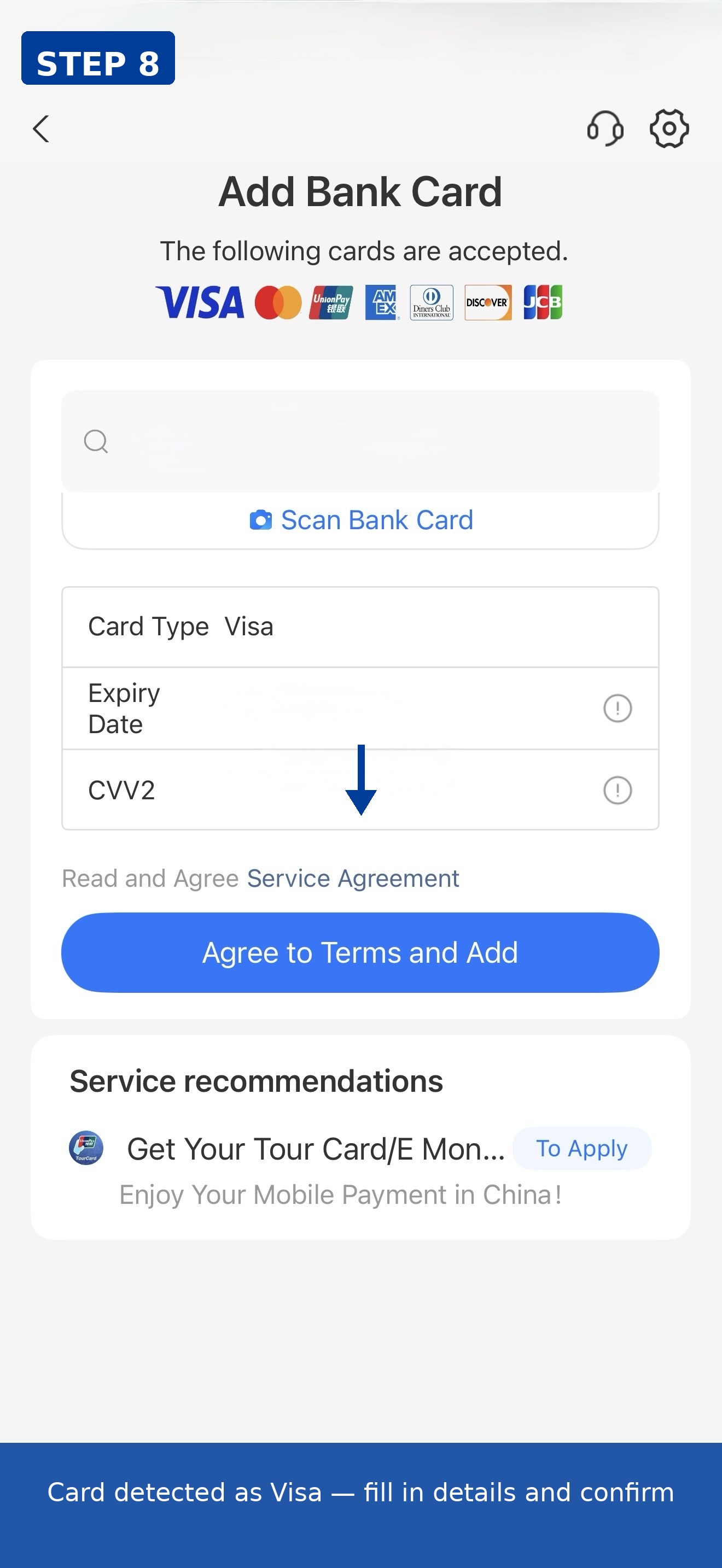
Alipay auto-detected our card as Visa. Fill in the expiry date and CVV2, then tap "Agree to Terms and Add".
Step 9: Security check
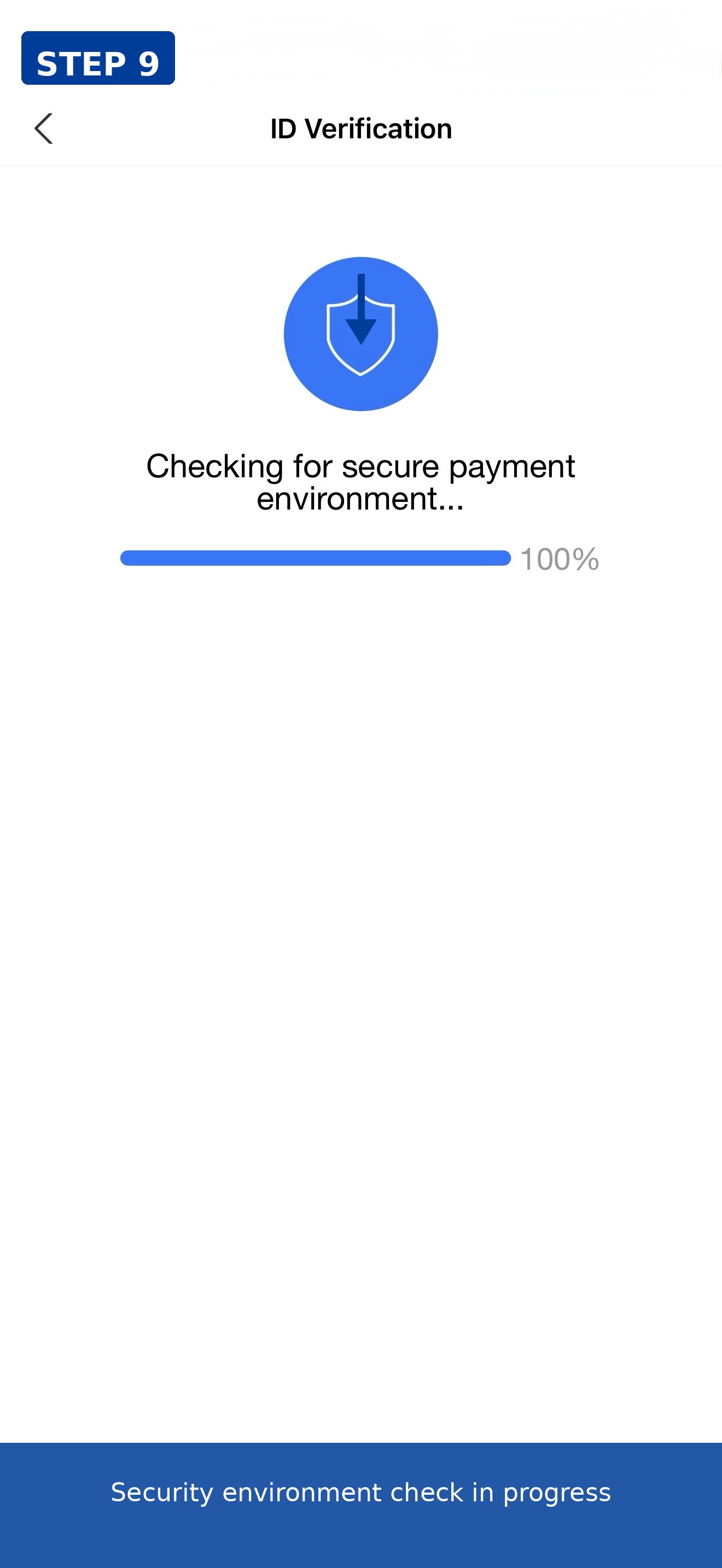
Alipay runs a quick security environment check. This usually takes just a few seconds.
Step 10: Set your payment password
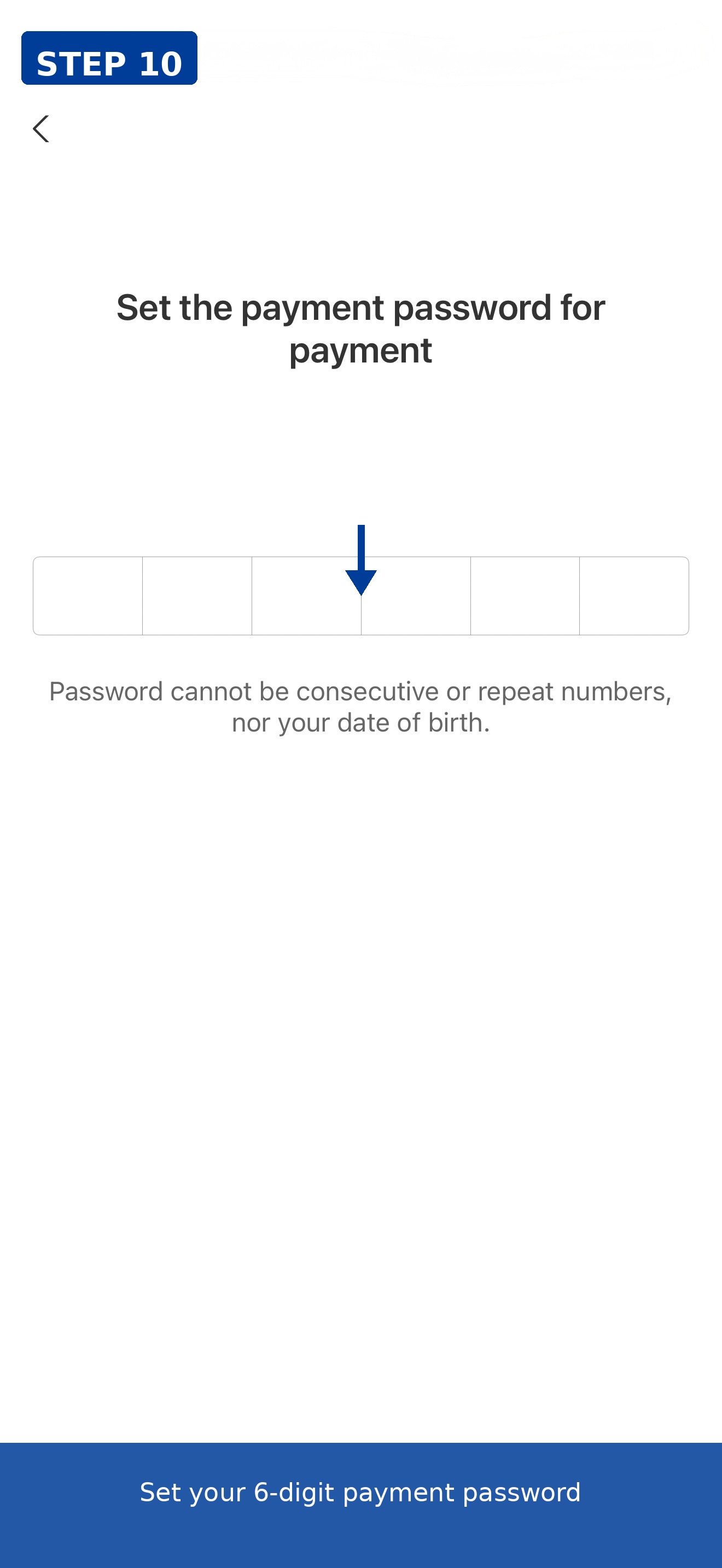
Create a 6-digit payment password. It can't be consecutive numbers (like 123456), repeating numbers (like 111111), or your date of birth.
Step 11: Card added successfully
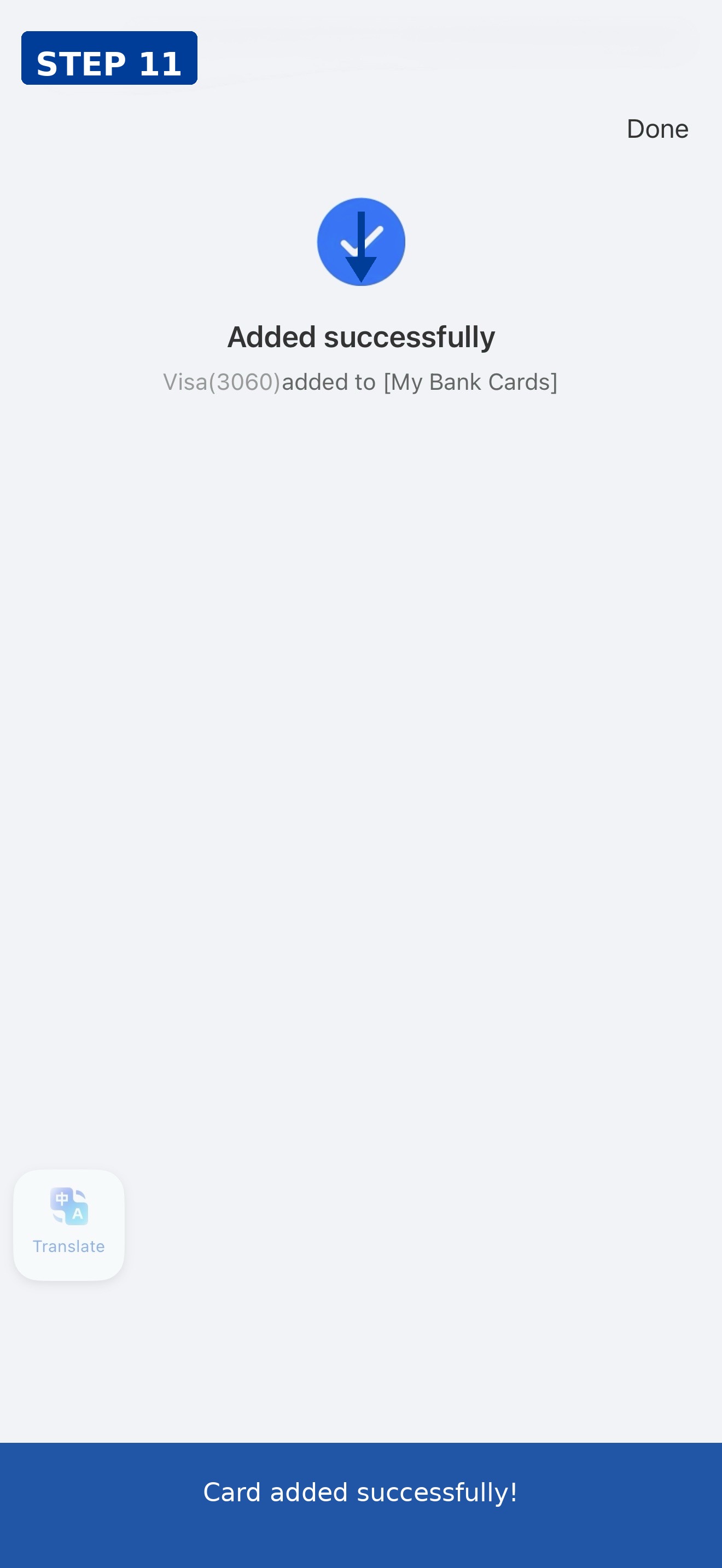
You'll see the "Added successfully" confirmation. Our Visa (ending 3060) was added to My Bank Cards.
Part 3: Activate your payment code
Step 12: Enter payment password to activate
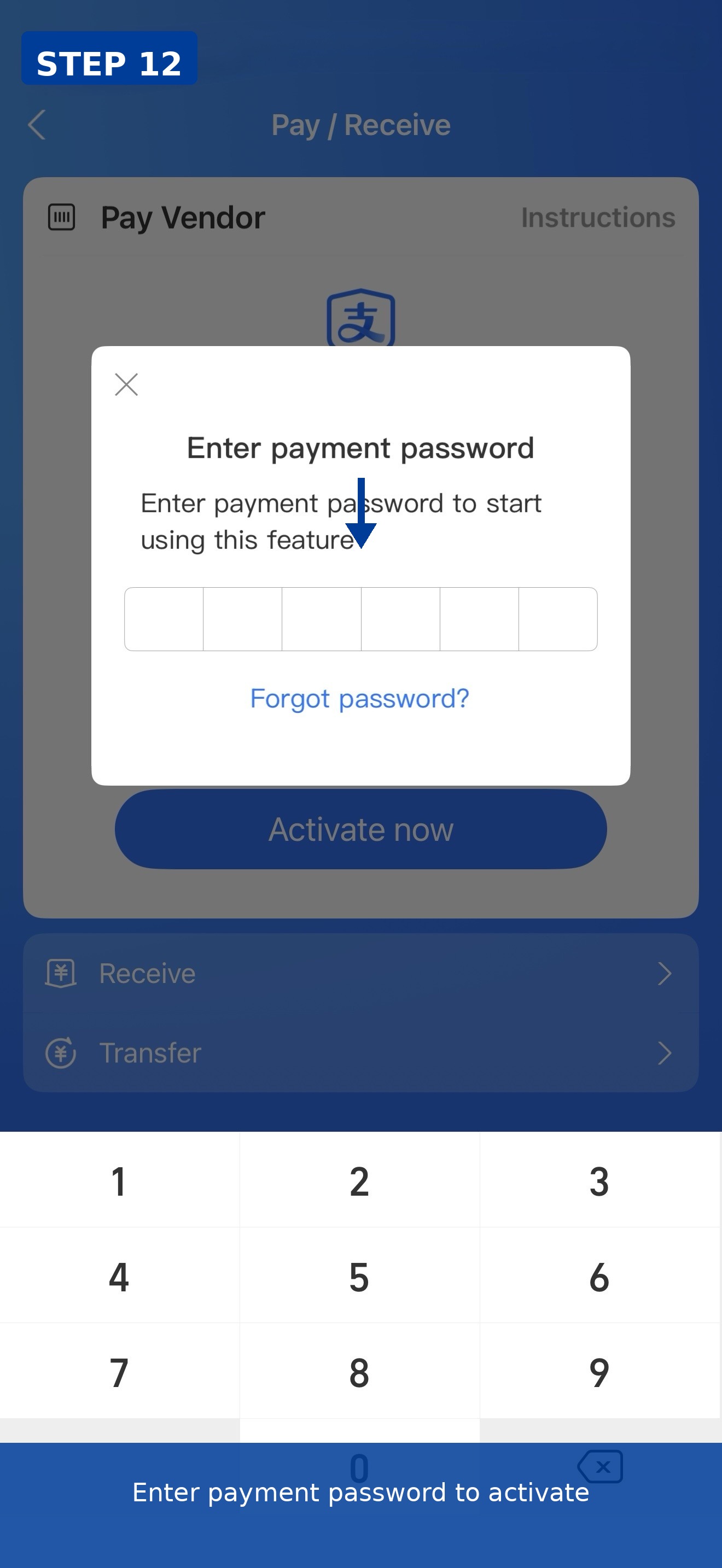
Return to Pay/Receive. Alipay will ask for your payment password to activate the payment code feature.
Step 13: Payment code ready!
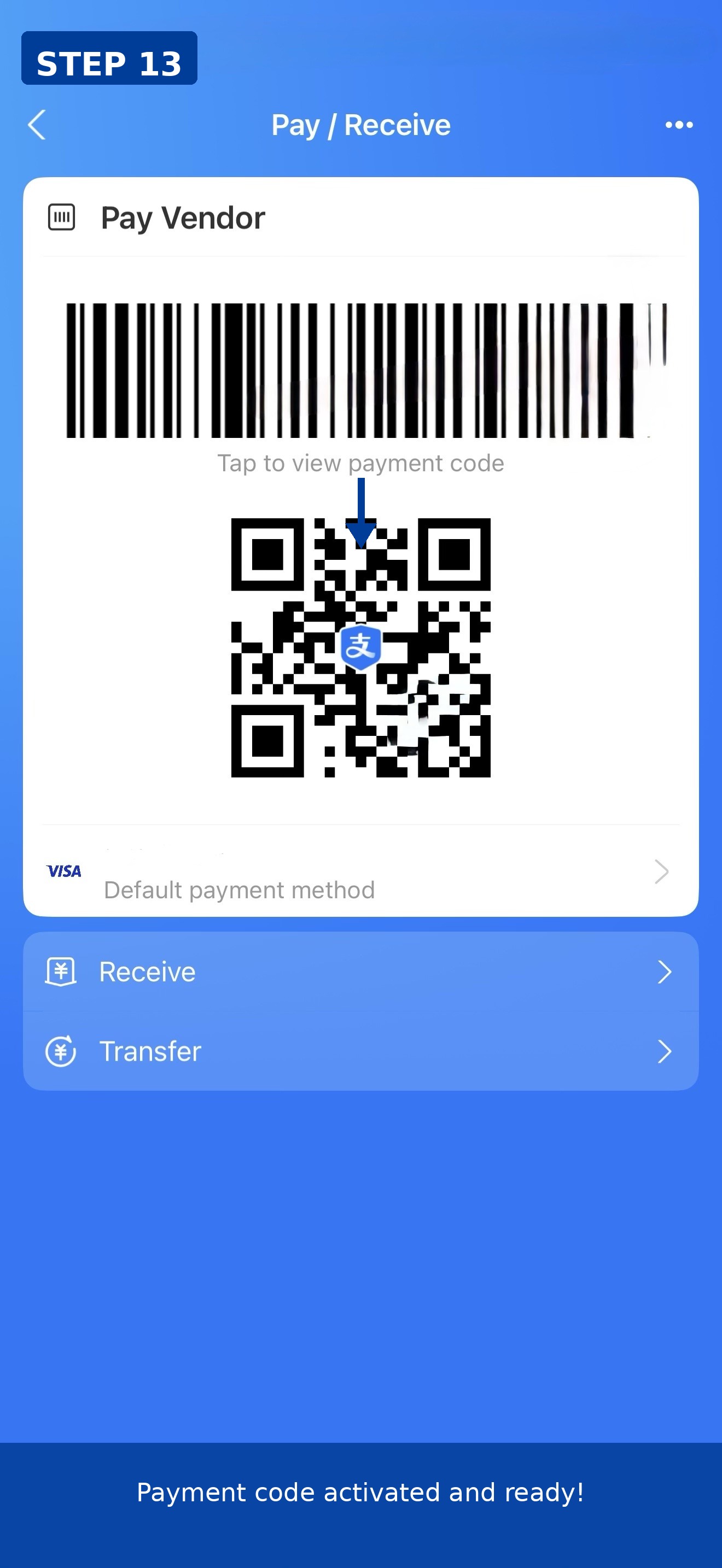
Your barcode and QR code are now active. Show them to merchants to pay. Your Visa is set as the default payment method.
Troubleshooting
- Didn't receive the SMS code? Wait 60 seconds and tap resend. Make sure your phone has signal.
- Card not accepted? Check that your card is Visa, Mastercard, or another supported brand. Some prepaid cards may not work.
- Payment password rejected? Avoid consecutive or repeating numbers.