WeChat Pay Registration & Card Binding: Full Step-by-Step Guide
✓ Hands-on test
Every screenshot below is from a real test we ran ourselves — registering a new WeChat account with a US mobile number and linking a Mastercard. No Chinese phone number was needed at any step.
Download WeChat:
Before you start
- A mobile phone that can receive SMS (any country)
- A Mastercard, Visa, or other supported bank card
- WeChat app installed (version 8.0.79 or later)
- About 10 minutes
Part 1: Register your WeChat account
Step 1: Start sign-up with your mobile number
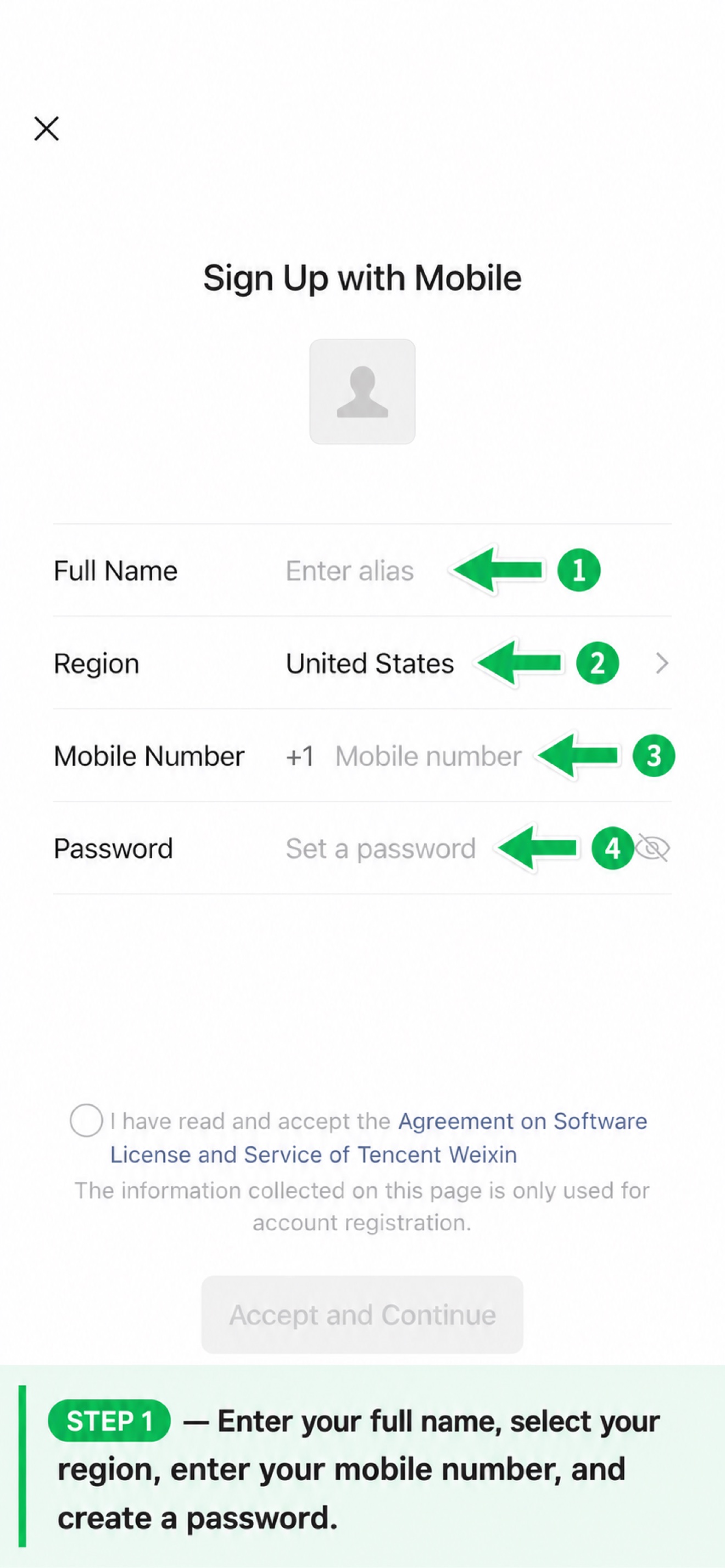
Step 2: Enter your details
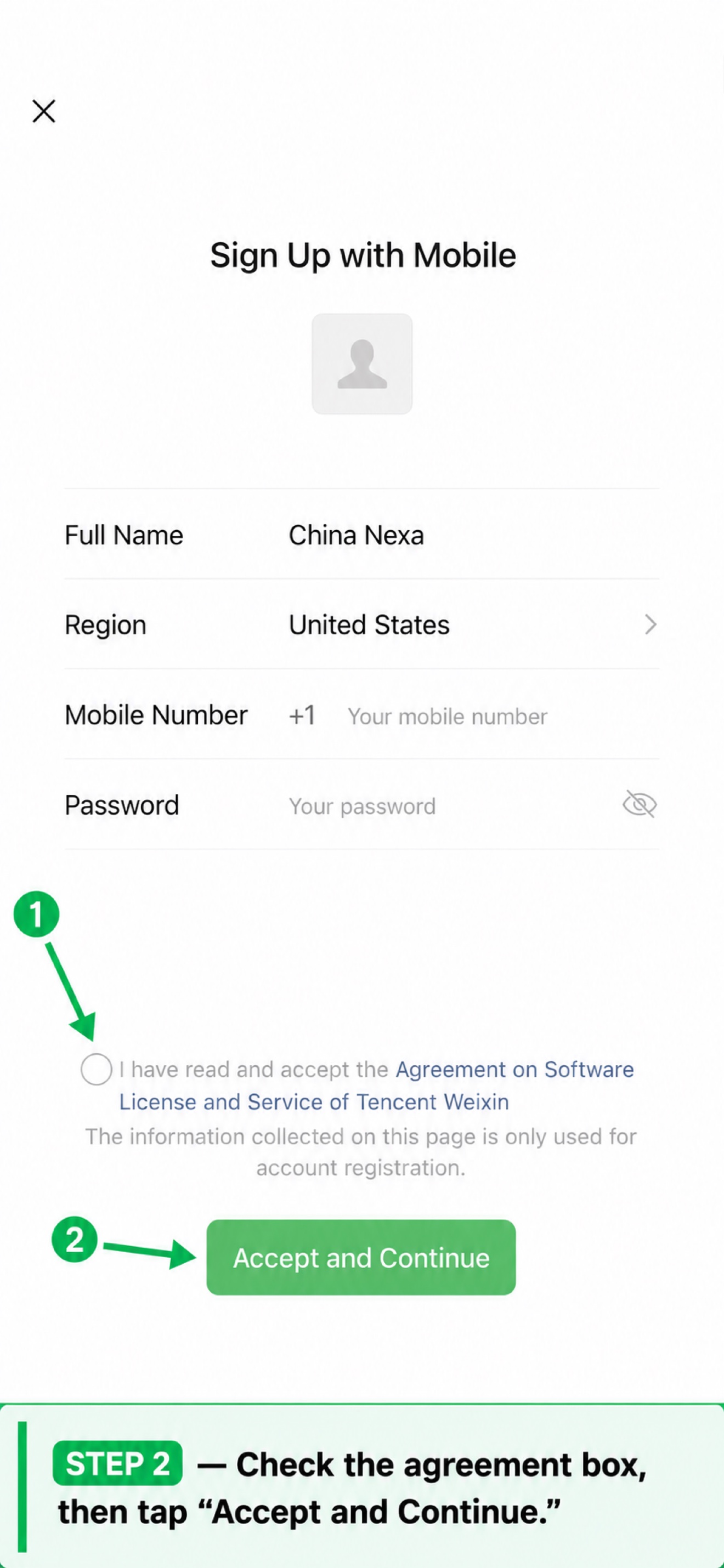
Step 3: Privacy policy
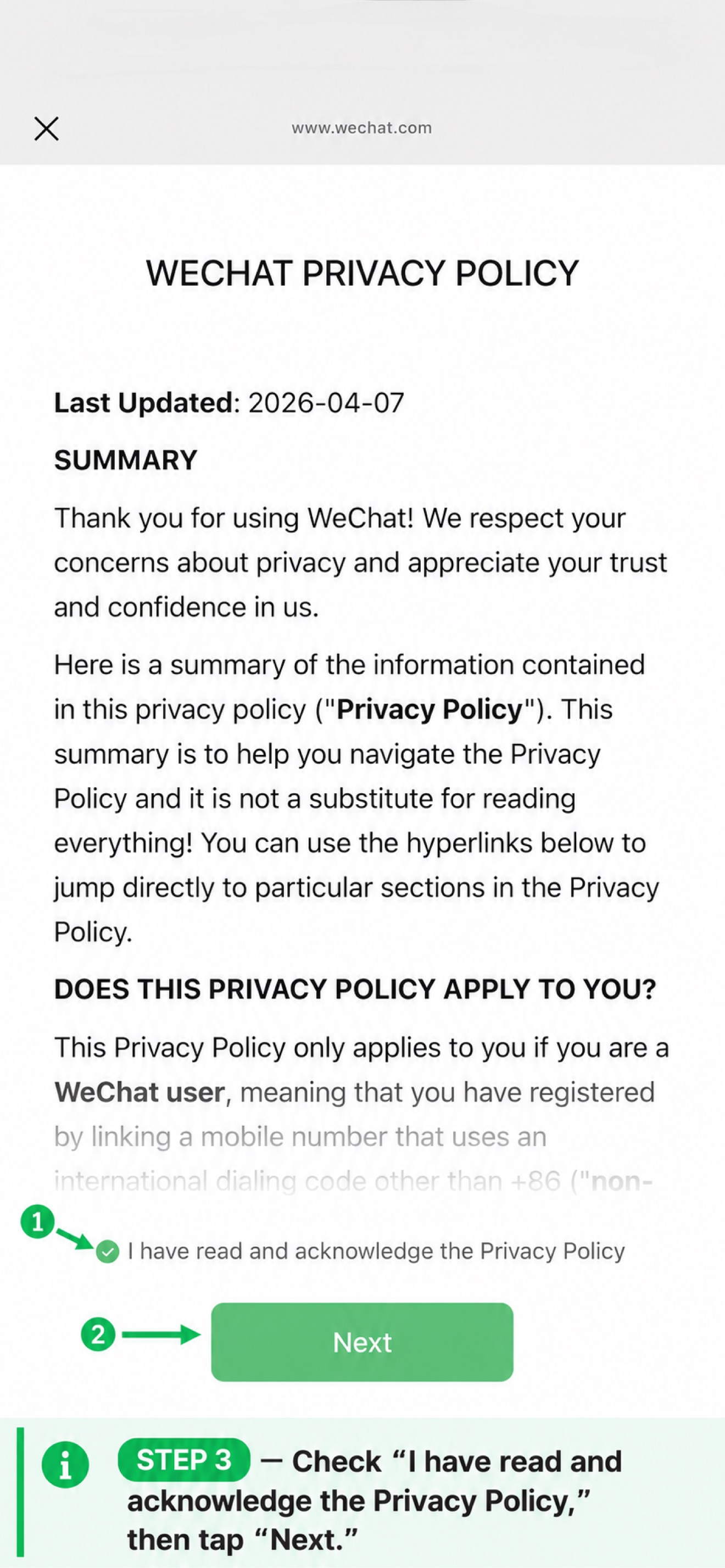
Step 4: Confirm your information
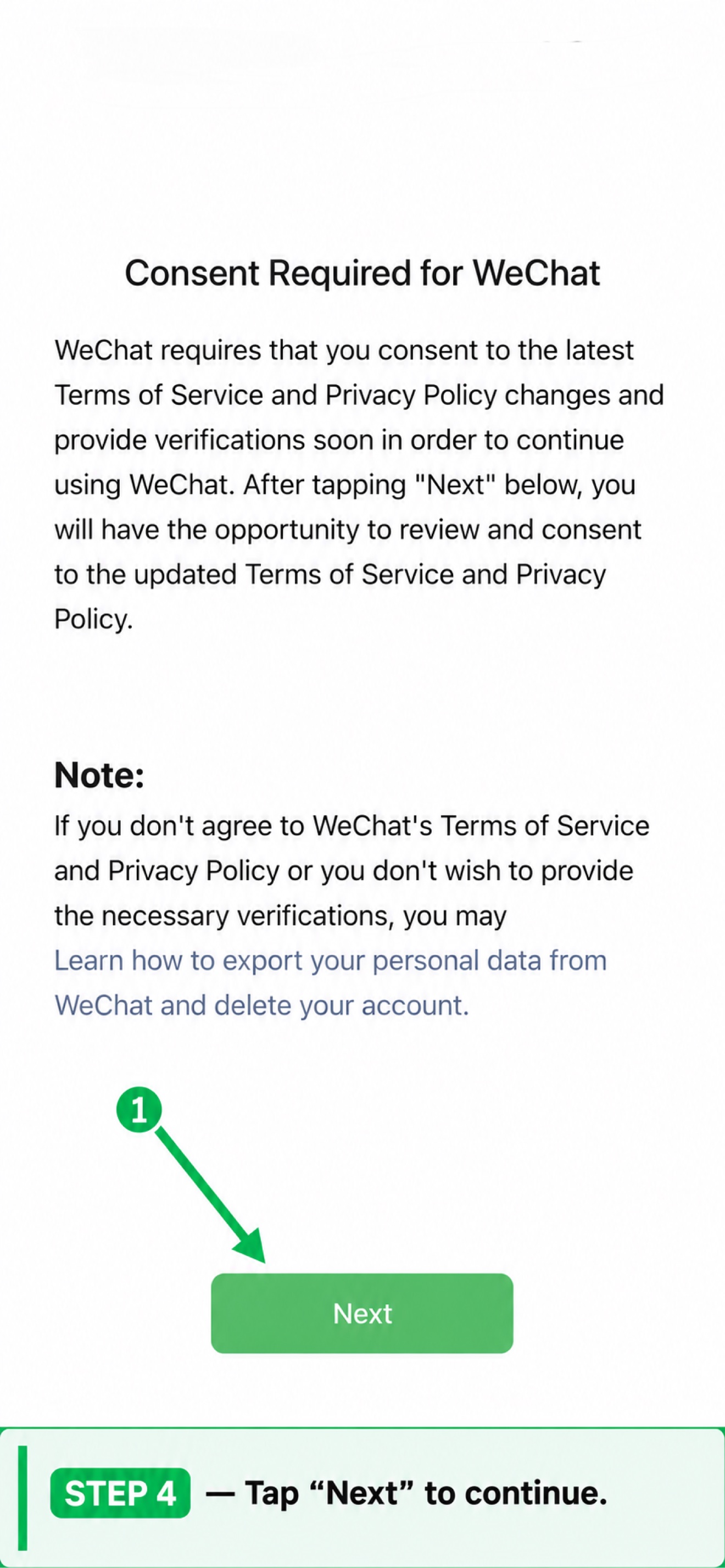
Step 5: Age verification
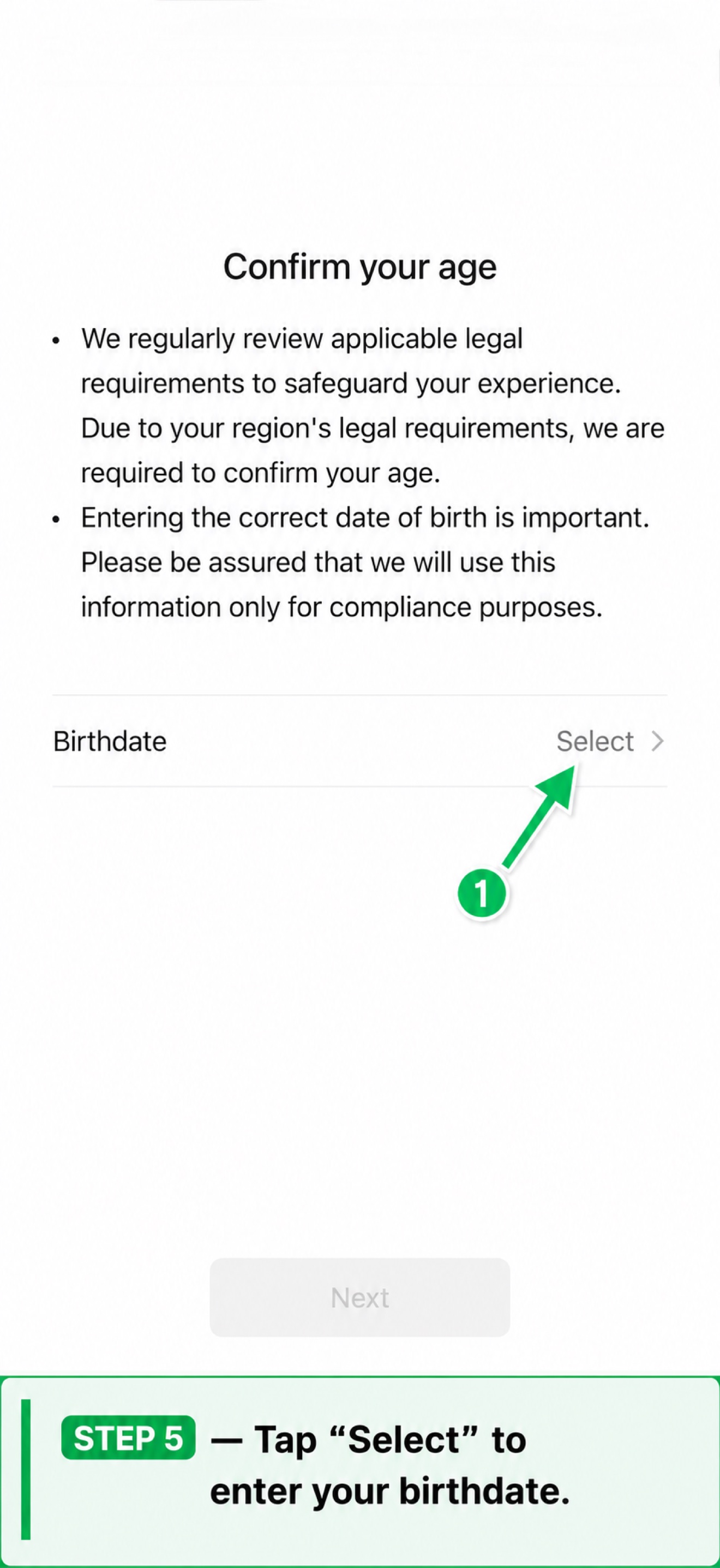
Step 6: Select your birthdate
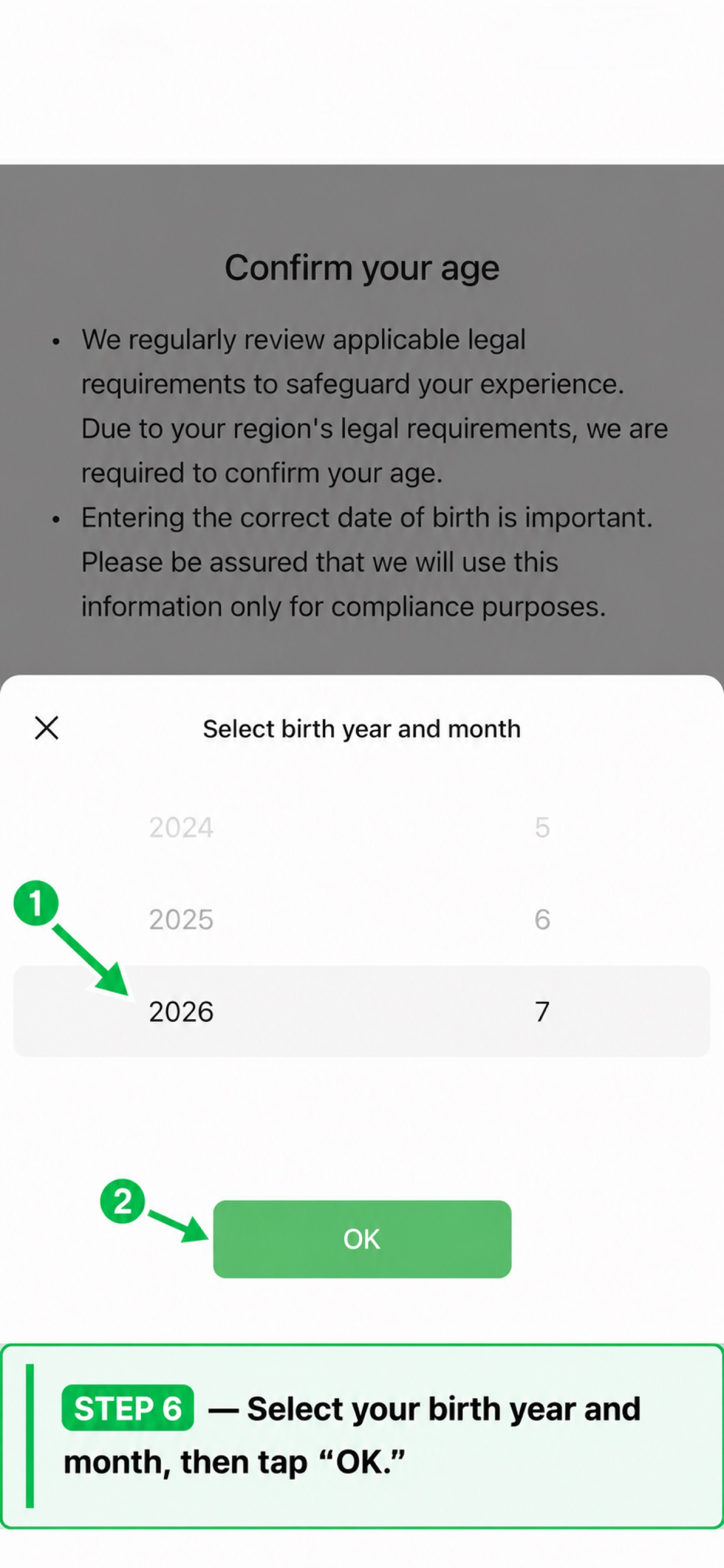
Step 7: Accept the terms
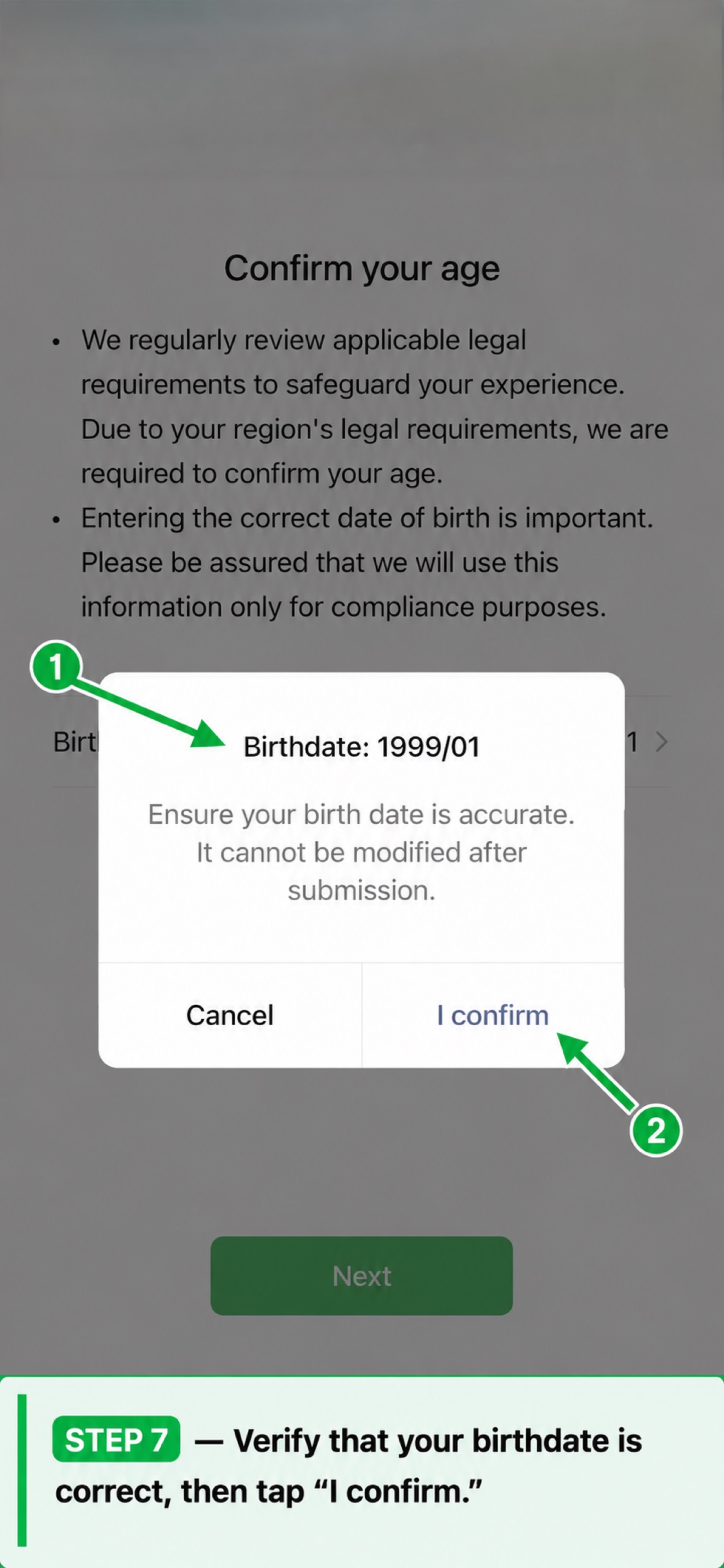
Step 8: Verify your phone number
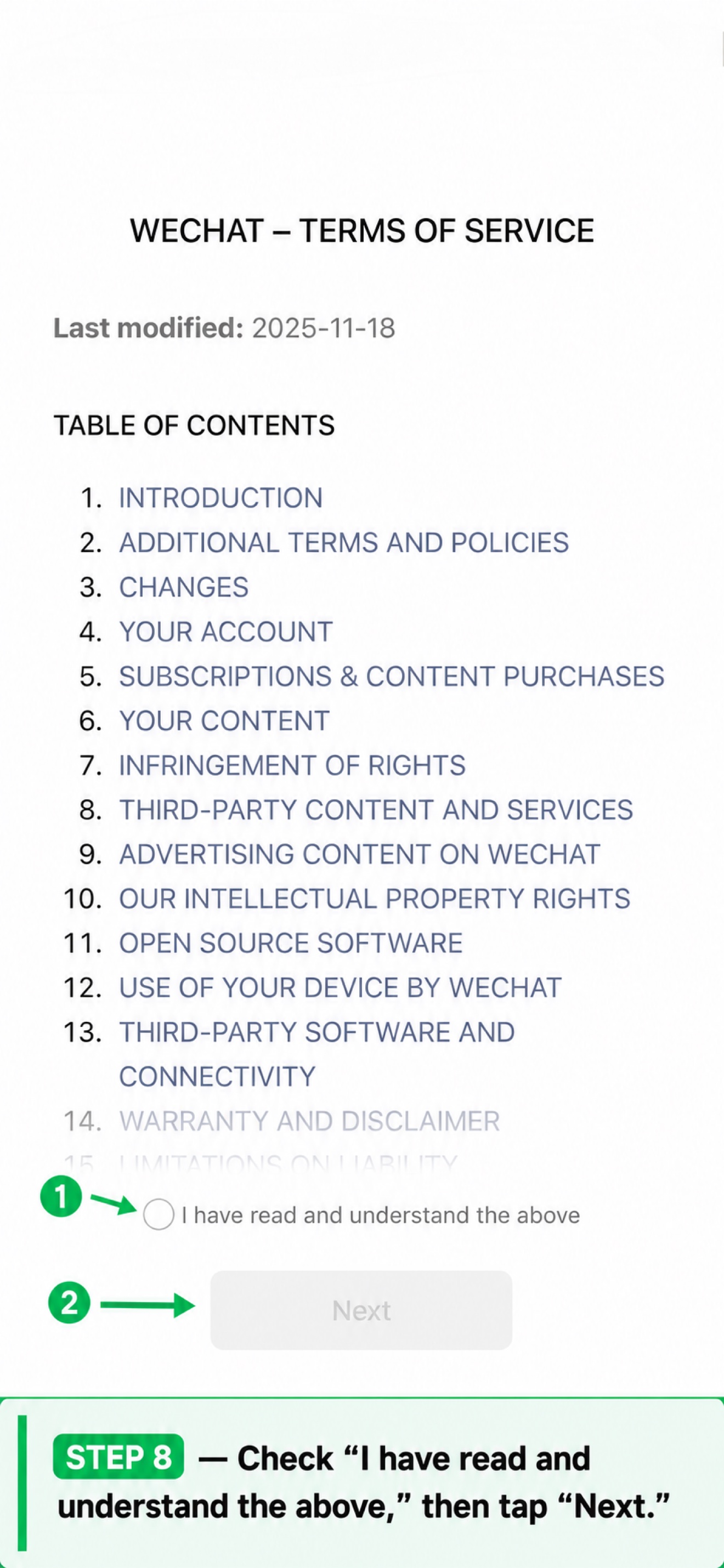
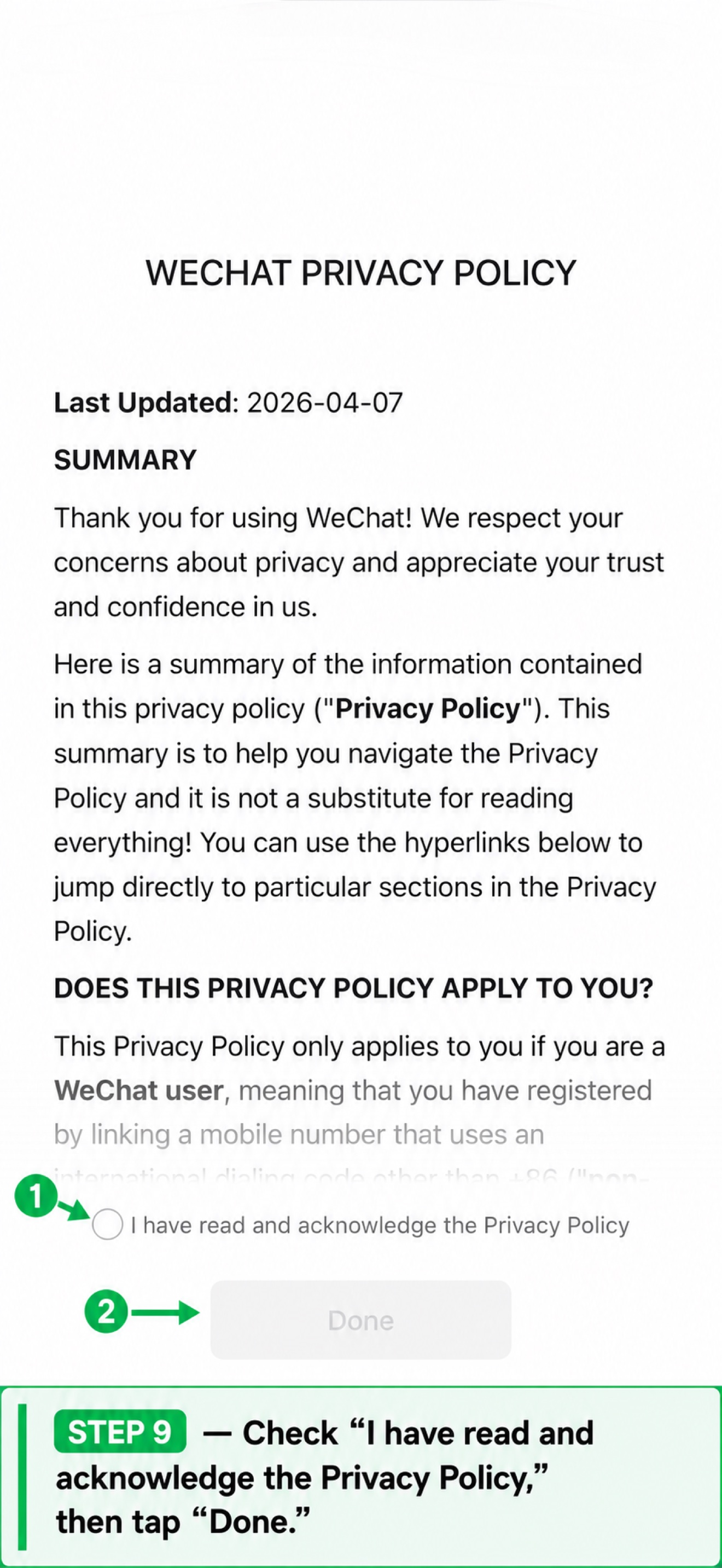
Step 9: Complete registration
Step 10: Welcome to WeChat!
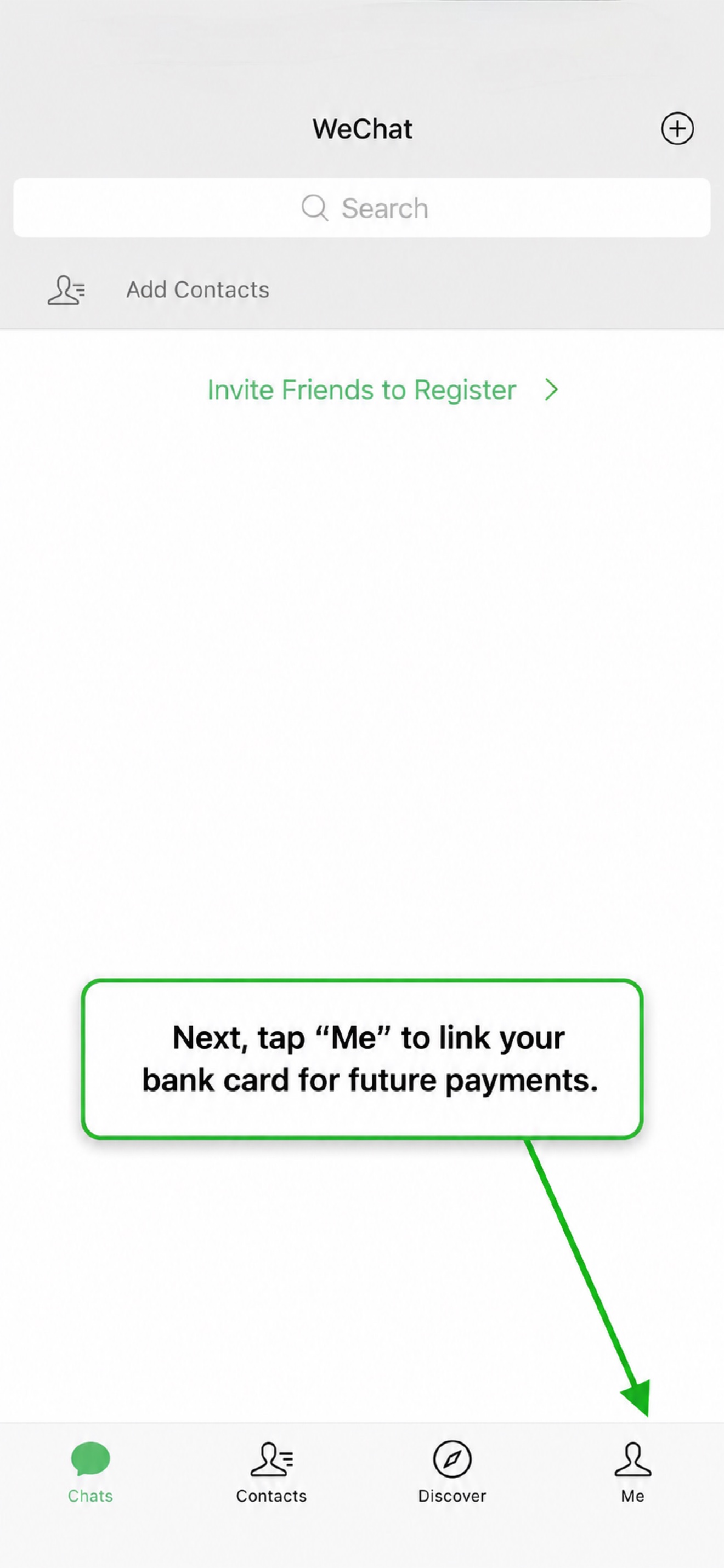
Registration complete! You now have a WeChat account tied to your US phone number.
Part 2: Link your bank card
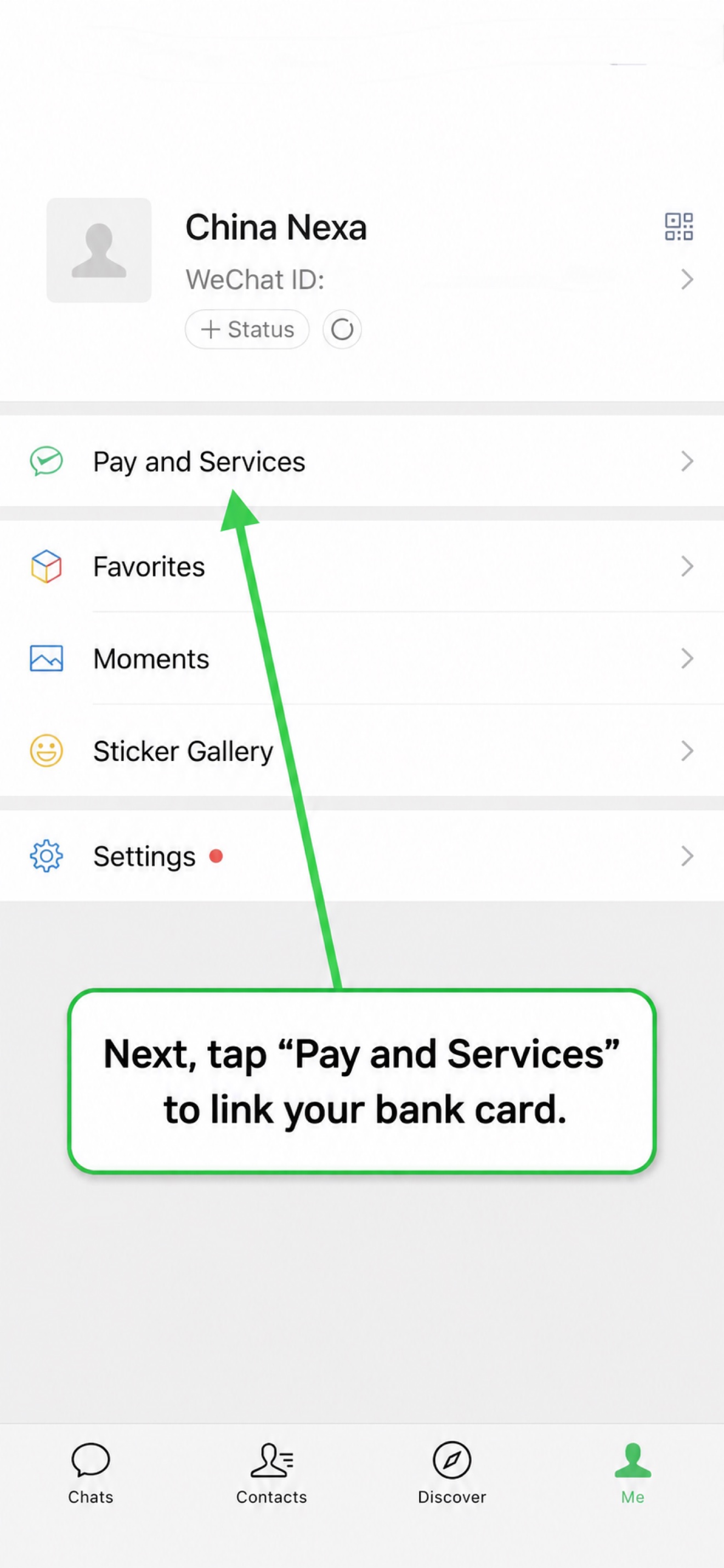
Step 11: Go to Me → Pay and Services
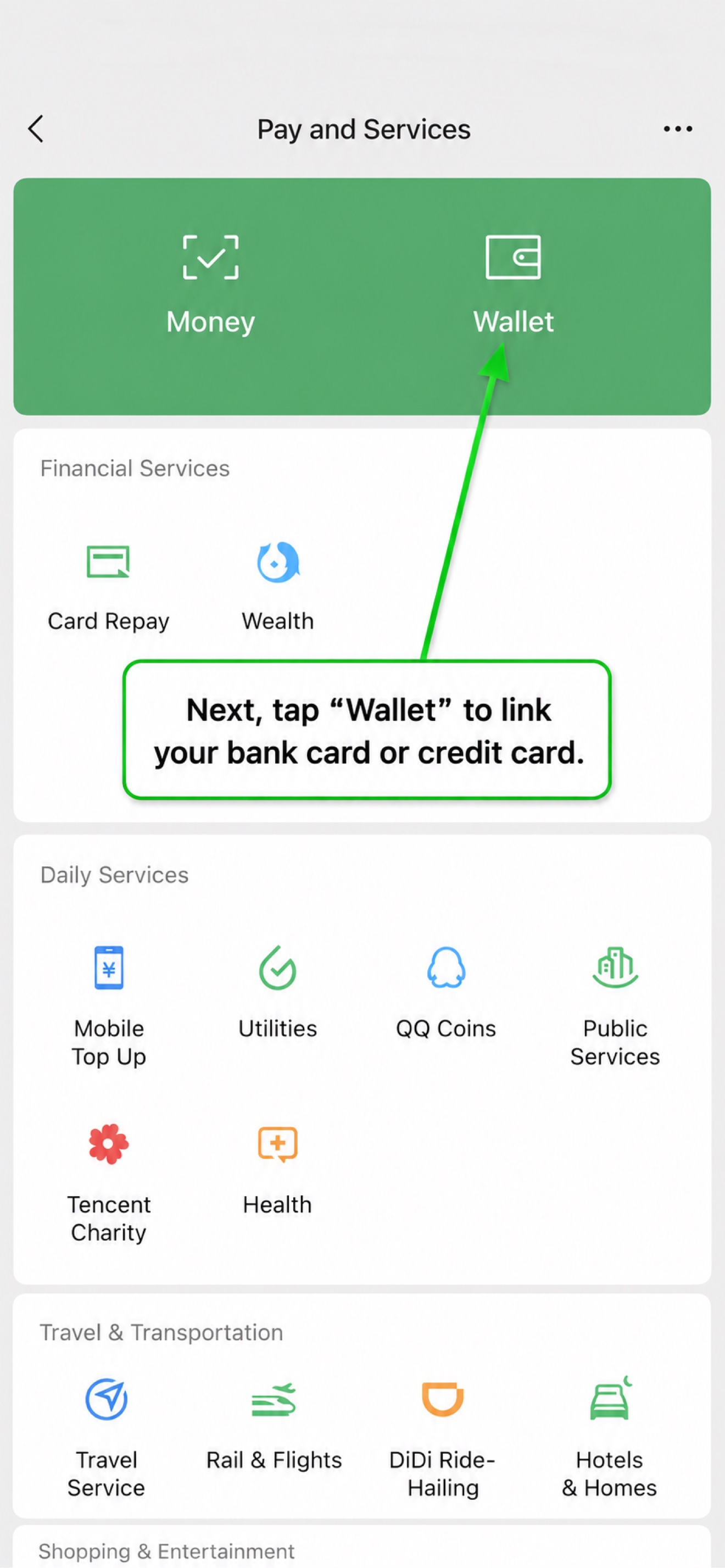
Step 12: Open Wallet
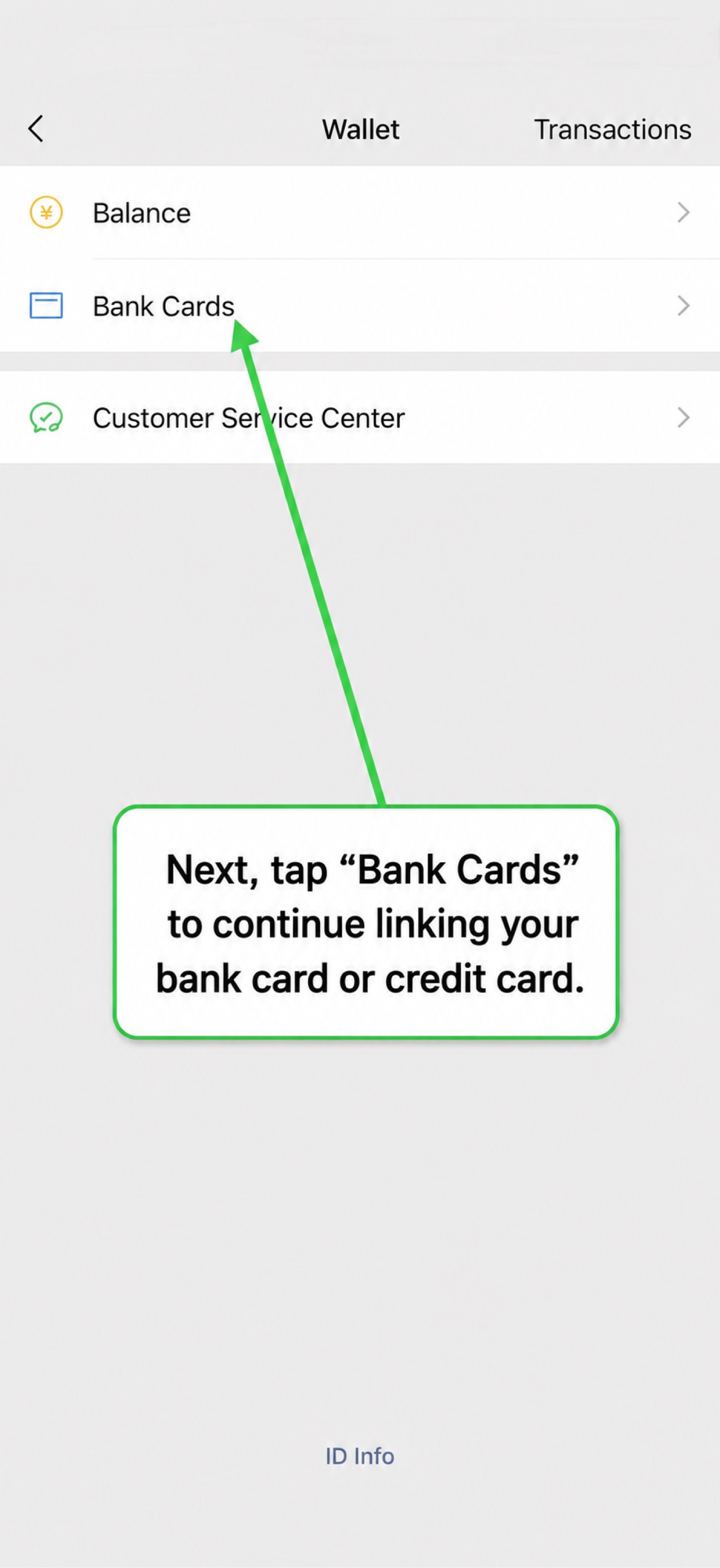
Step 13: Go to Bank Cards
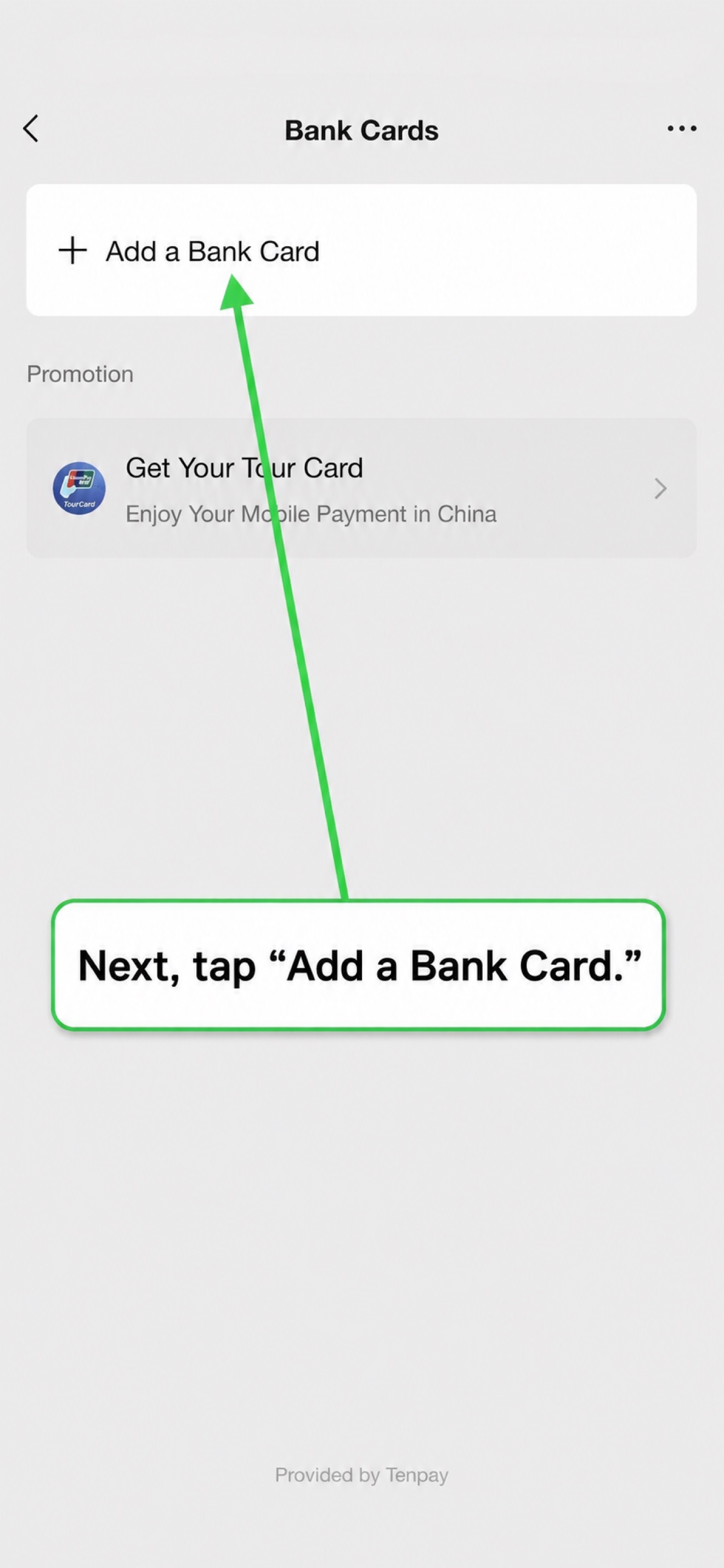
Step 14: Add a Bank Card
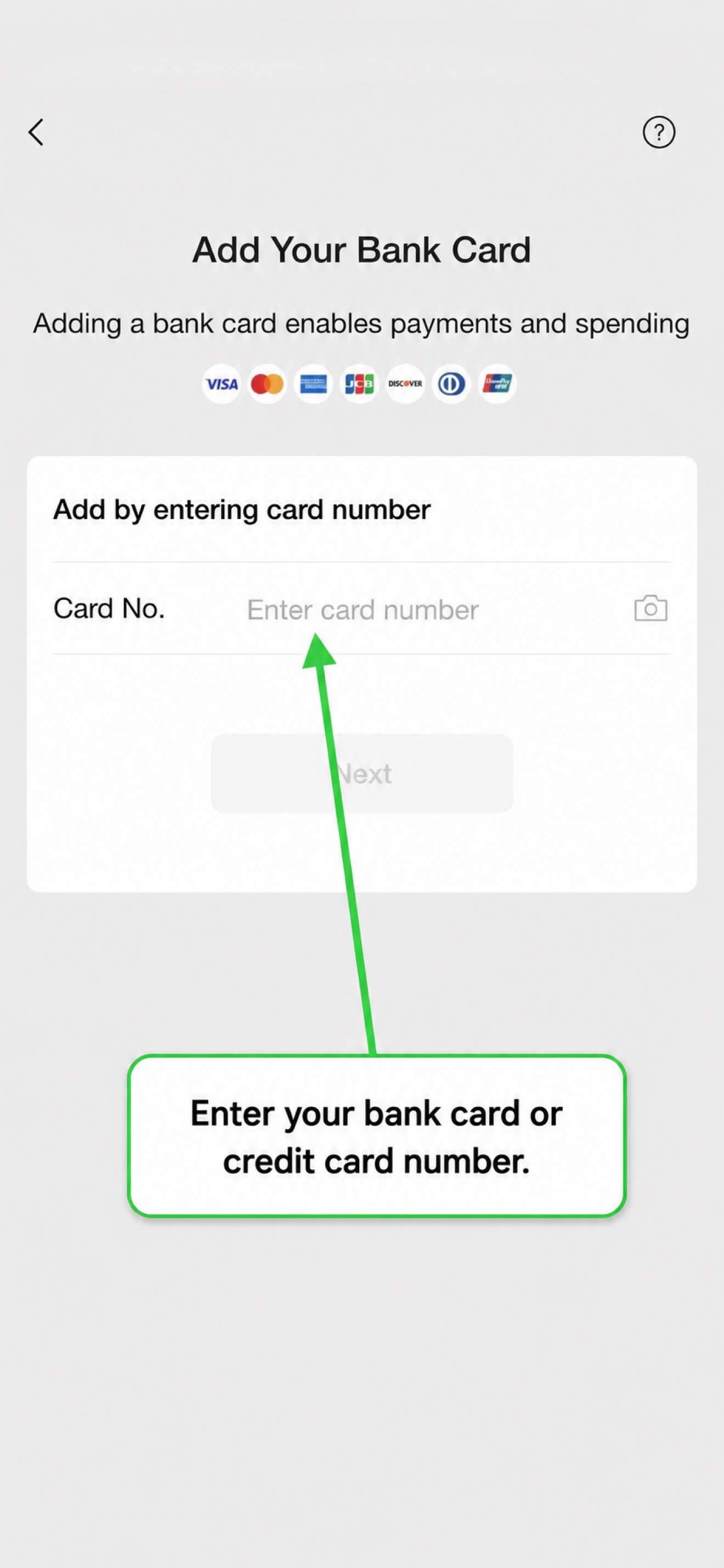
Step 15: Enter your card number
Step 16: Card auto-detected as Mastercard
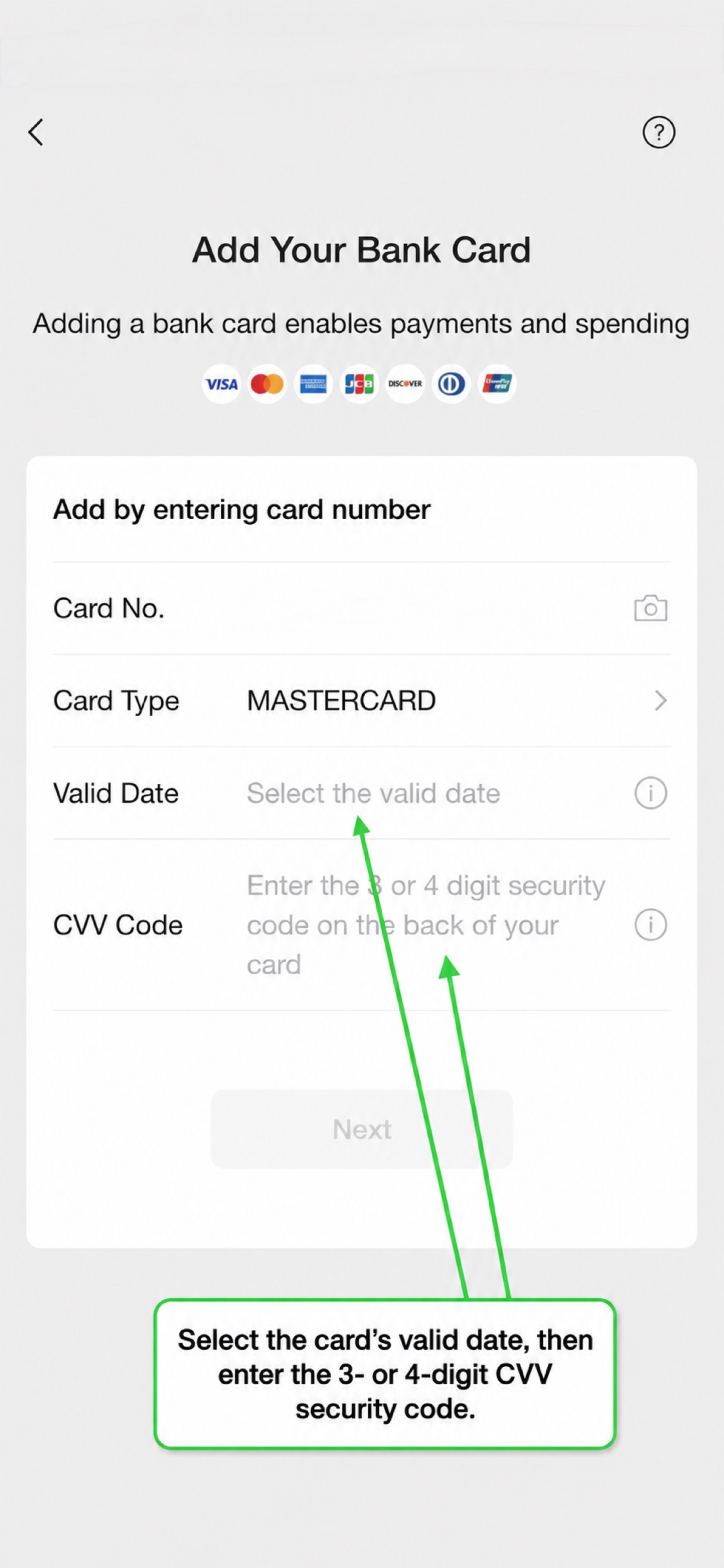
WeChat automatically recognized our American Savings Bank card as Mastercard.
Step 17: Enter card details
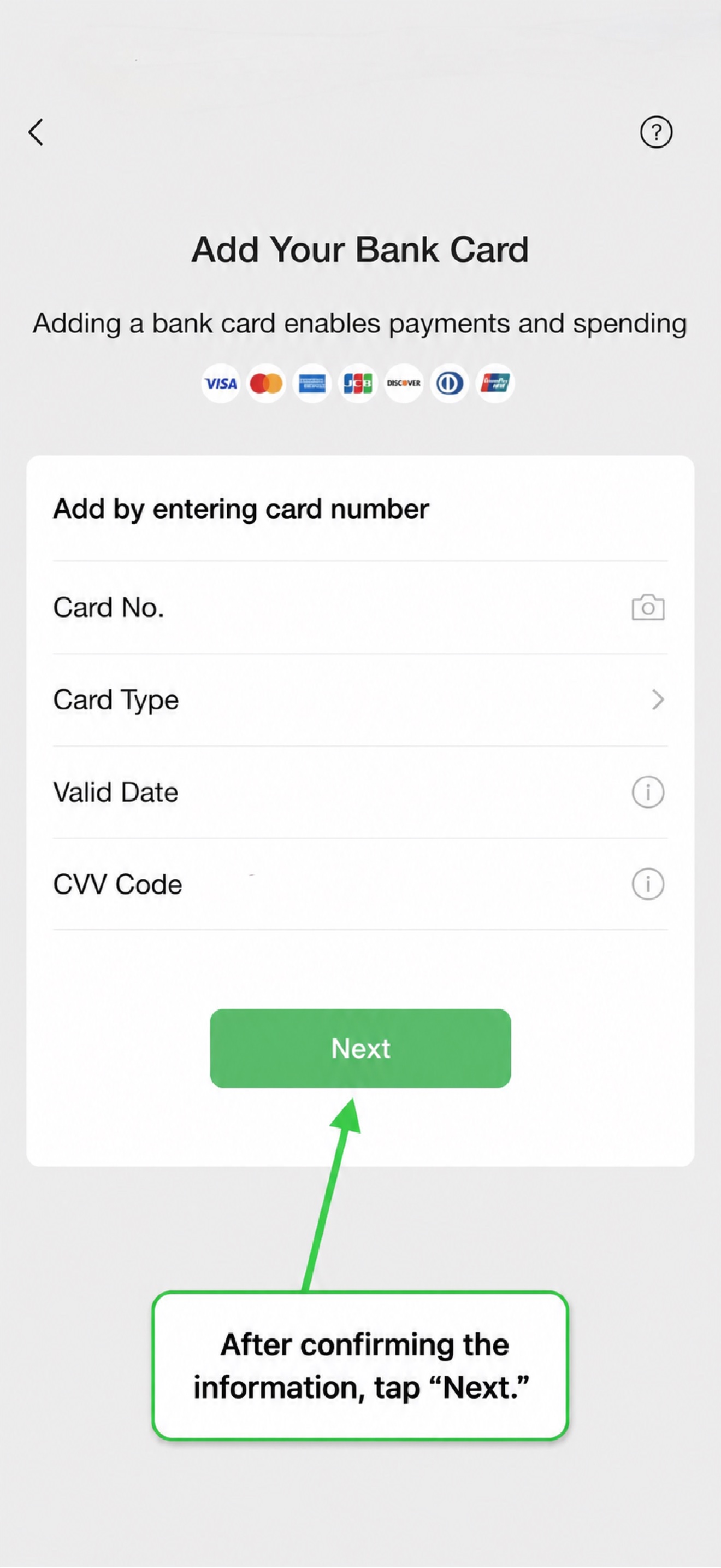
Step 18: Set your payment password
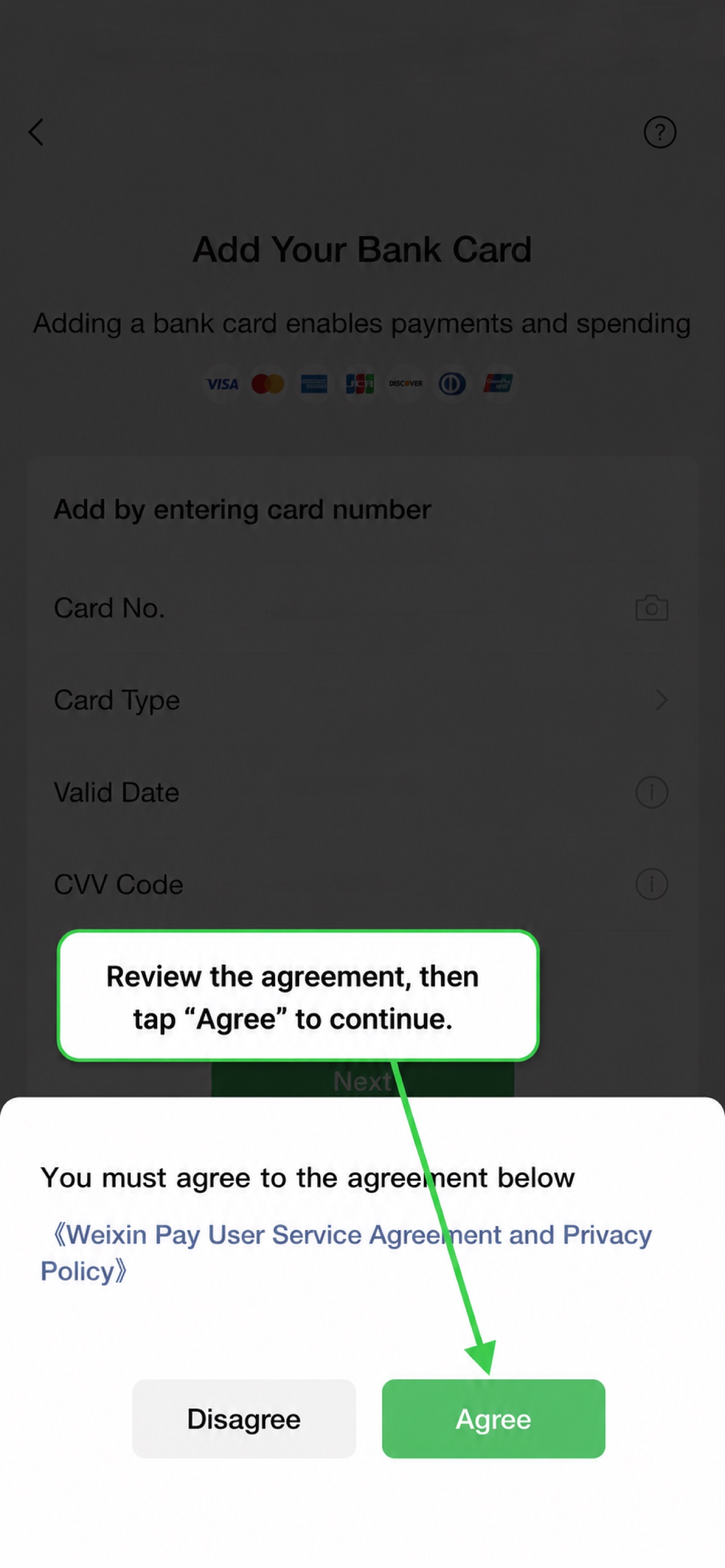
Create a 6-digit Weixin Pay password for transactions.
Part 3: Activate your payment code
Step 19: Card added successfully
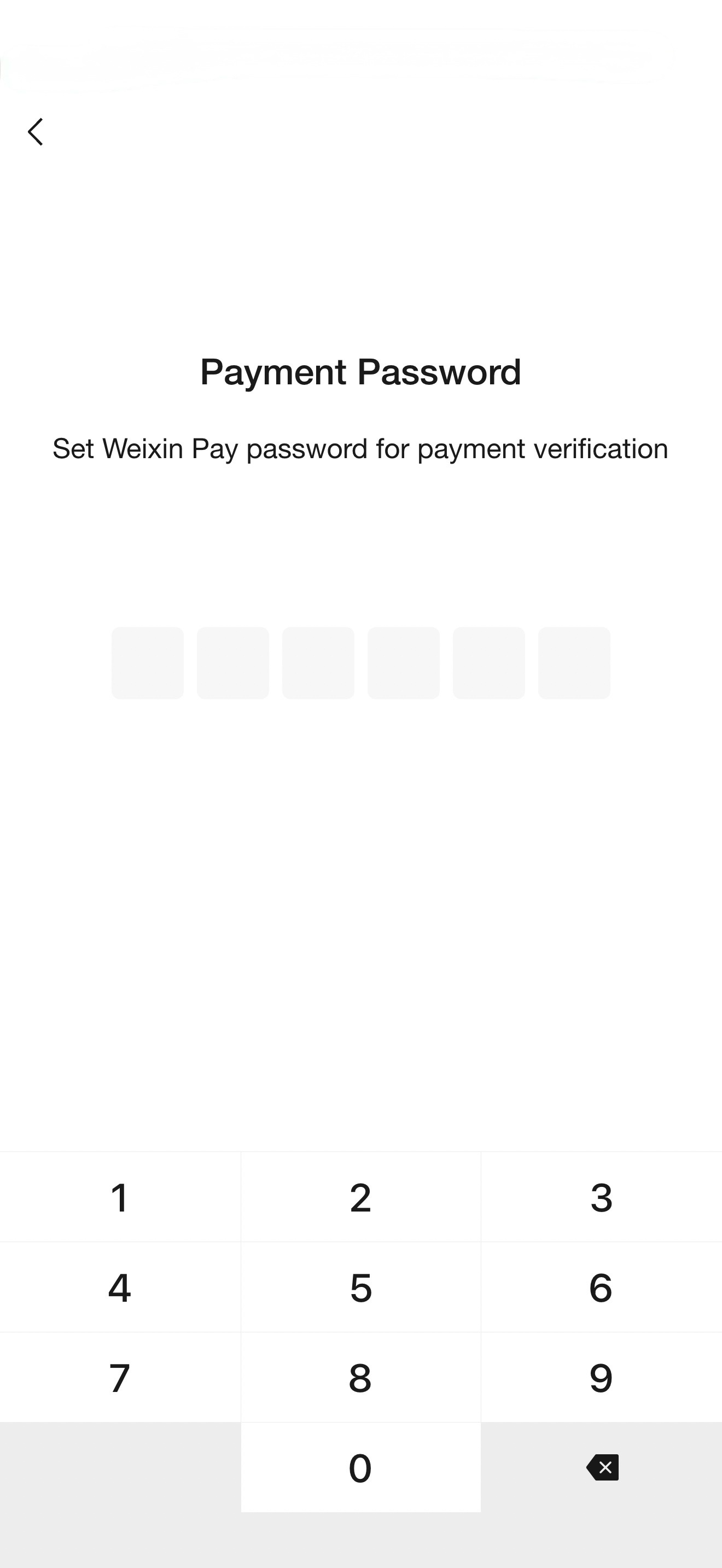
Step 20: Confirm the binding
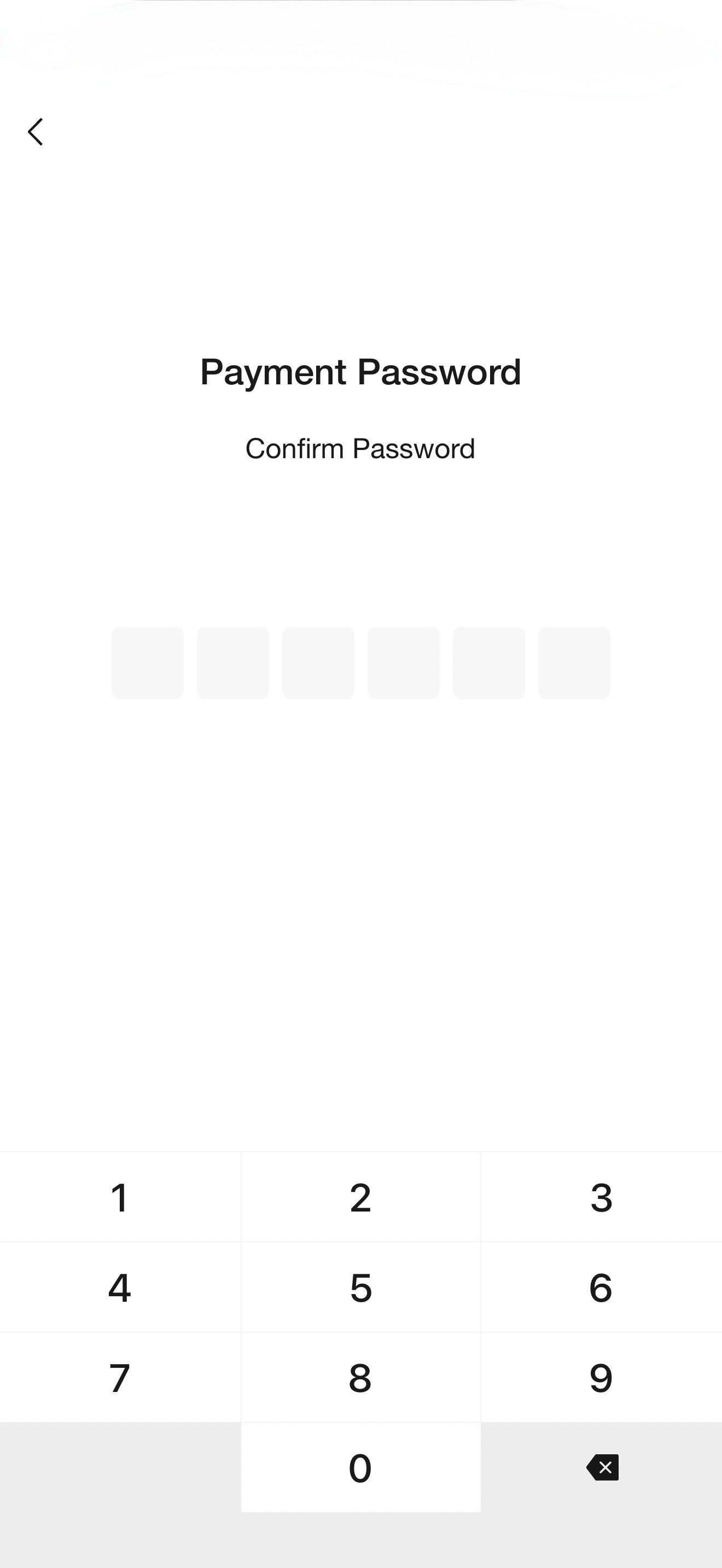
Step 21: "Added" — card linked!
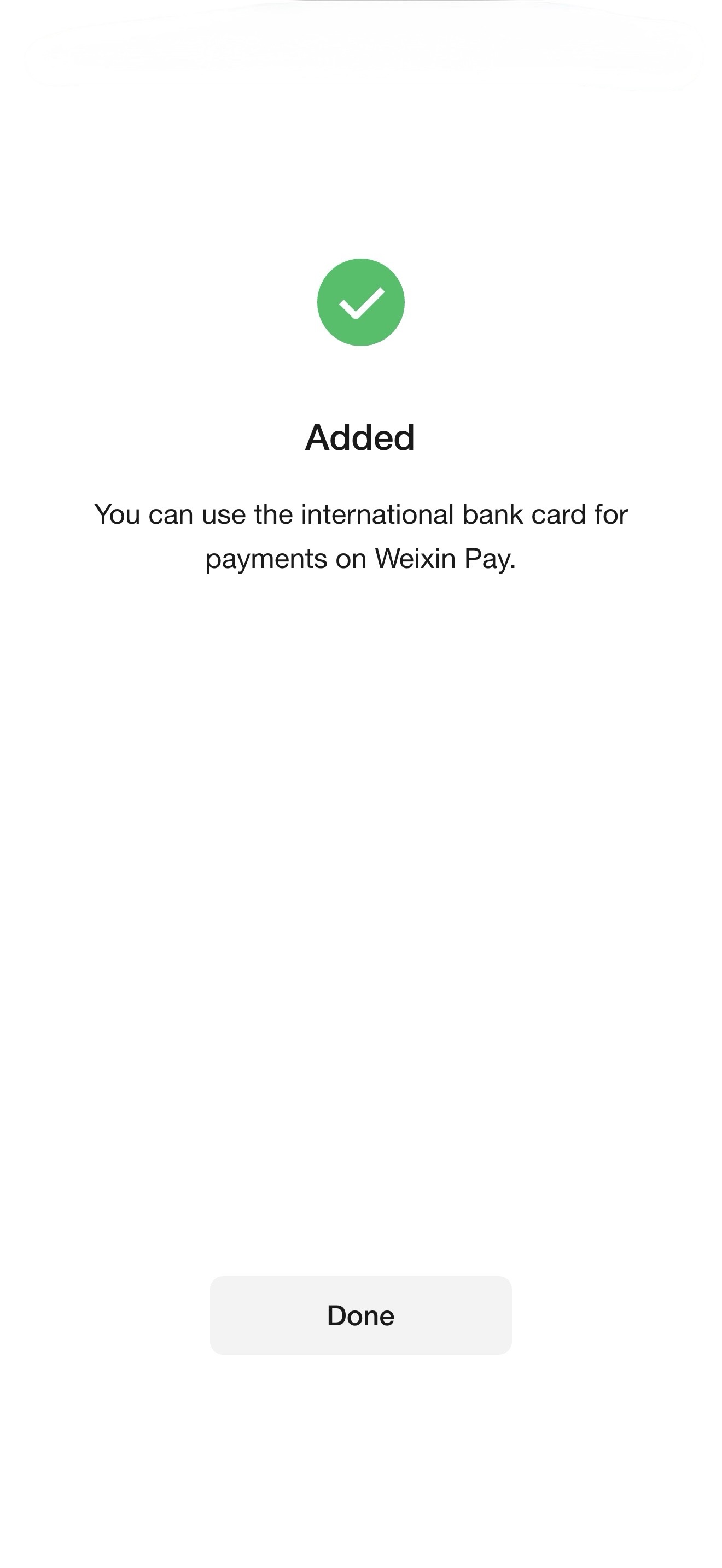
The "Added" screen confirms your card is linked.
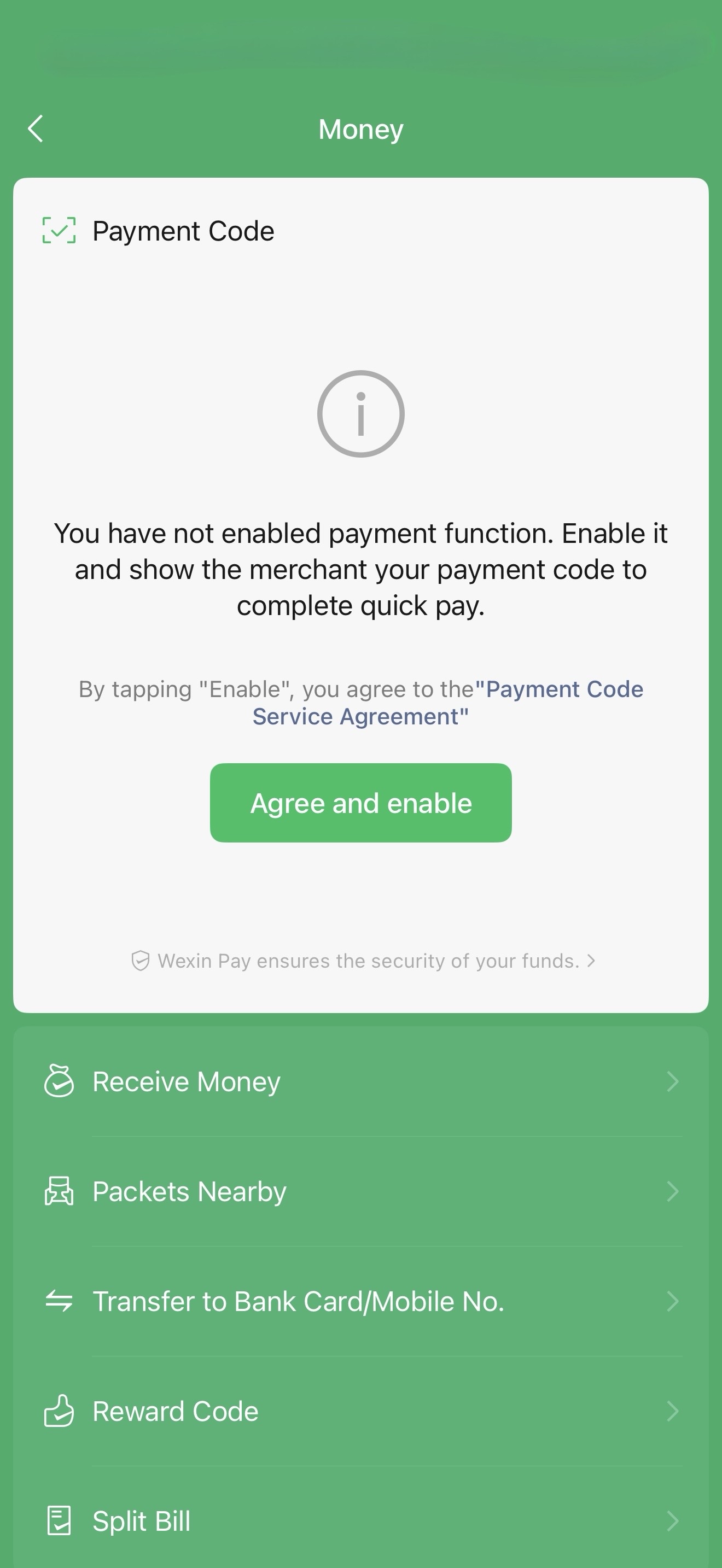
Step 22: Enable the payment code
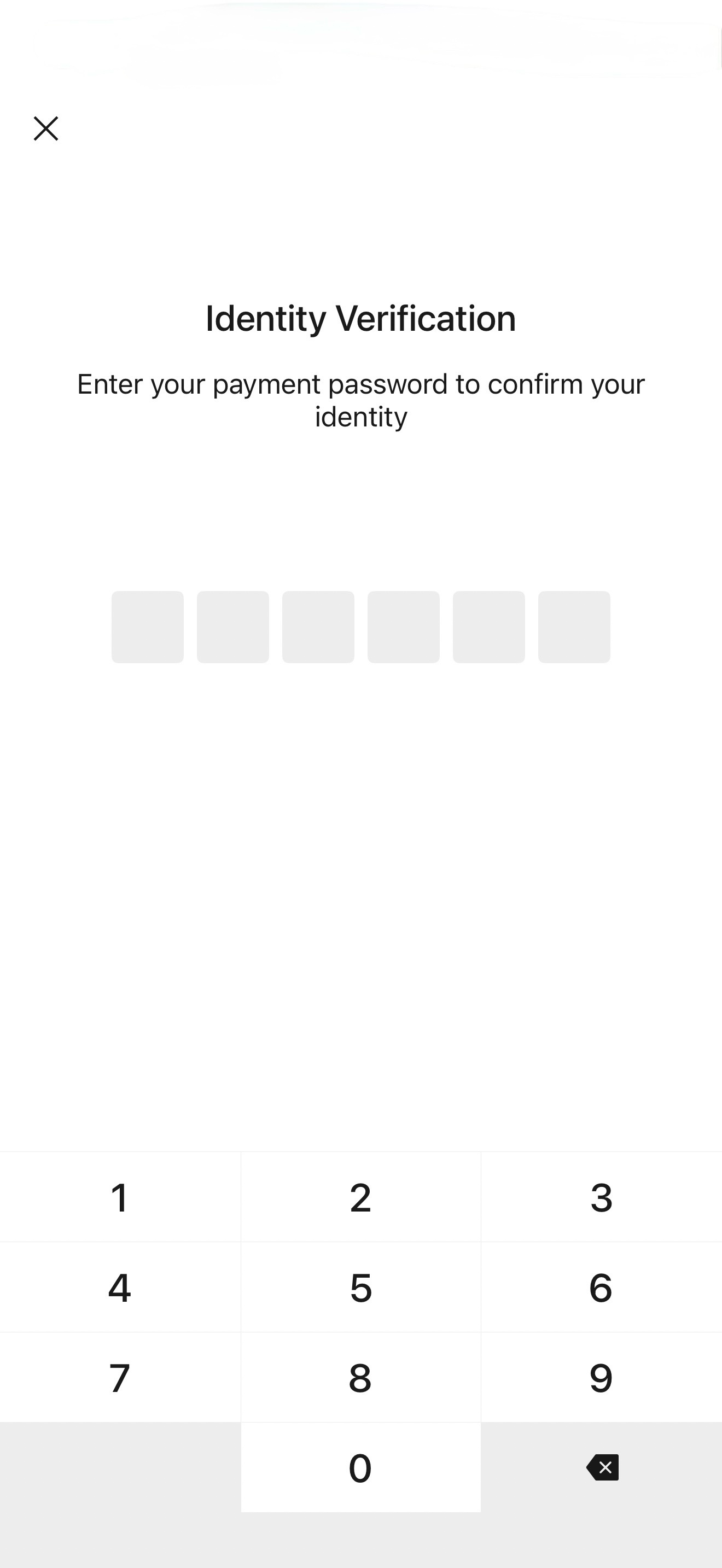
Step 23: Verify your identity
Step 24: Payment code active!
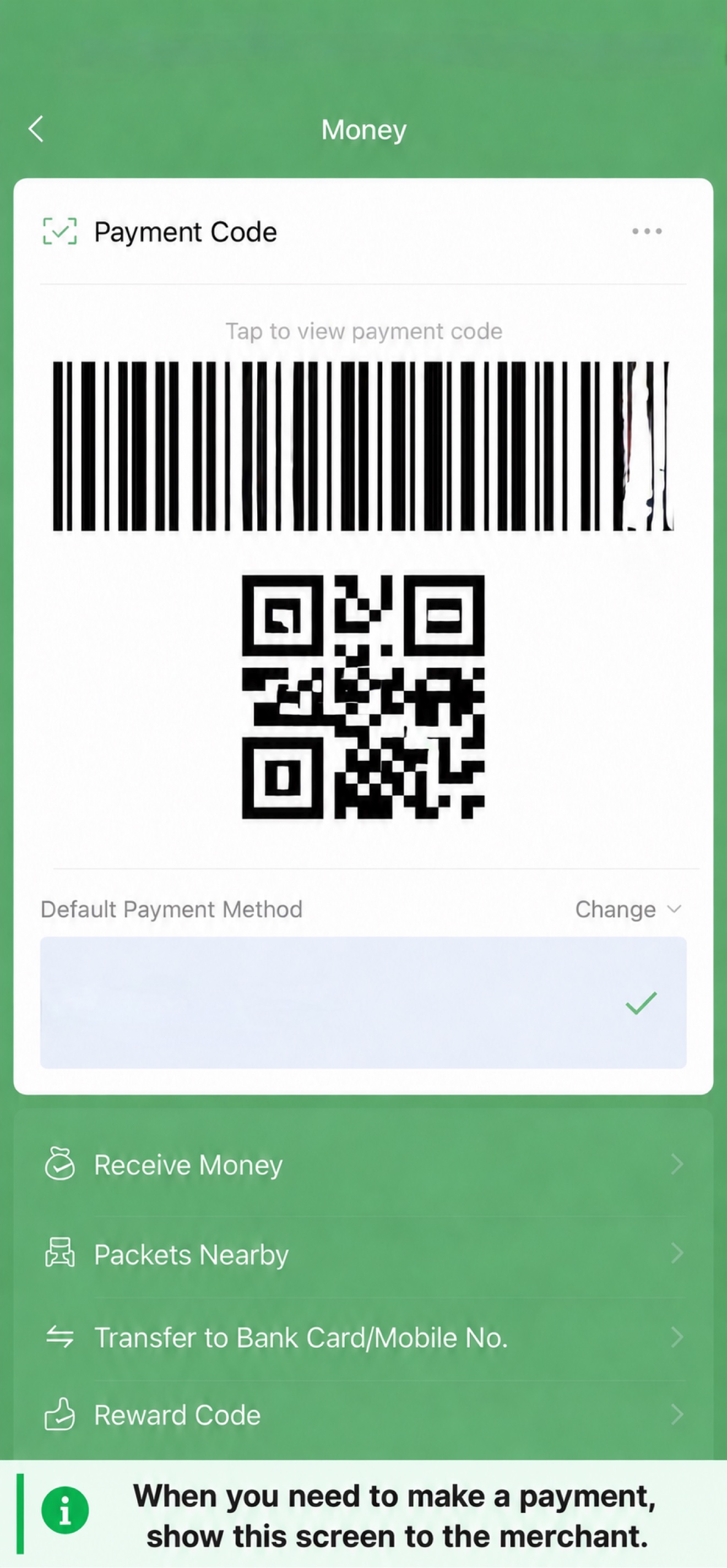
Your payment QR code and barcode are now active. Show them to merchants to pay.
Troubleshooting
- Didn't receive the SMS code? Wait 60 seconds and try again. Some carriers may delay international SMS.
- Card not accepted? Make sure your card supports international transactions. Contact your bank if unsure.
- Payment code not showing? Complete the identity verification step with your payment password.